How to Add Company Profile Information in Sleek Bill?
Hello Sleek
Bill users, welcome to the Sleek Bill Knowledge Hub!
In this
procedure, I will show you how to add/ edit your company profile information to
Sleek Bill. The company profile shows everything to identify your company, like the company name, the company logo, the address, the state, the city, the Pin code, which is shown on all
business documents like invoices, quotations, delivery challans, etc.
Why Is This Important?
Keeping your
company profile updated helps you:
- Create Professional Documents: Display your company information correctly on invoices and quotations.
- Build Trust: A complete profile makes your business look more professional.
- Save Time: Company details are automatically filled in every document.
- Avoid Errors: Ensure customers receive accurate business information.
How to Update the Company Profile in Sleek Bill?
Follow these
simple steps:
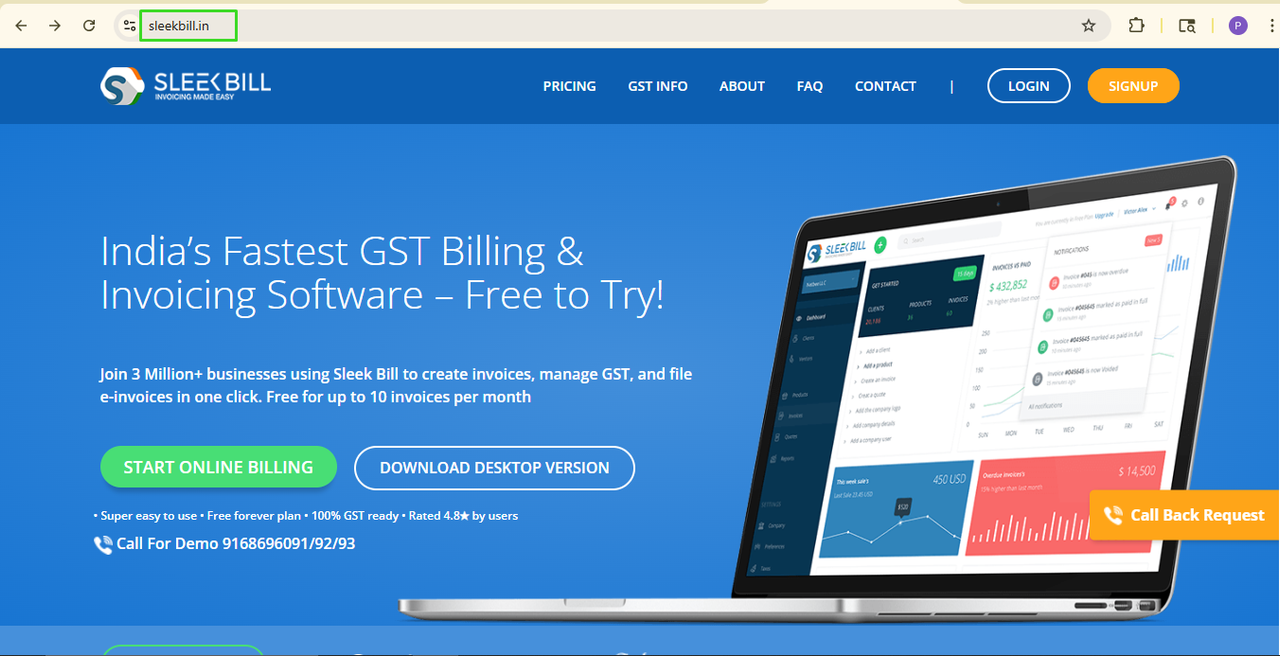
Step 1: Open your browser and visit www.sleekbill.in.
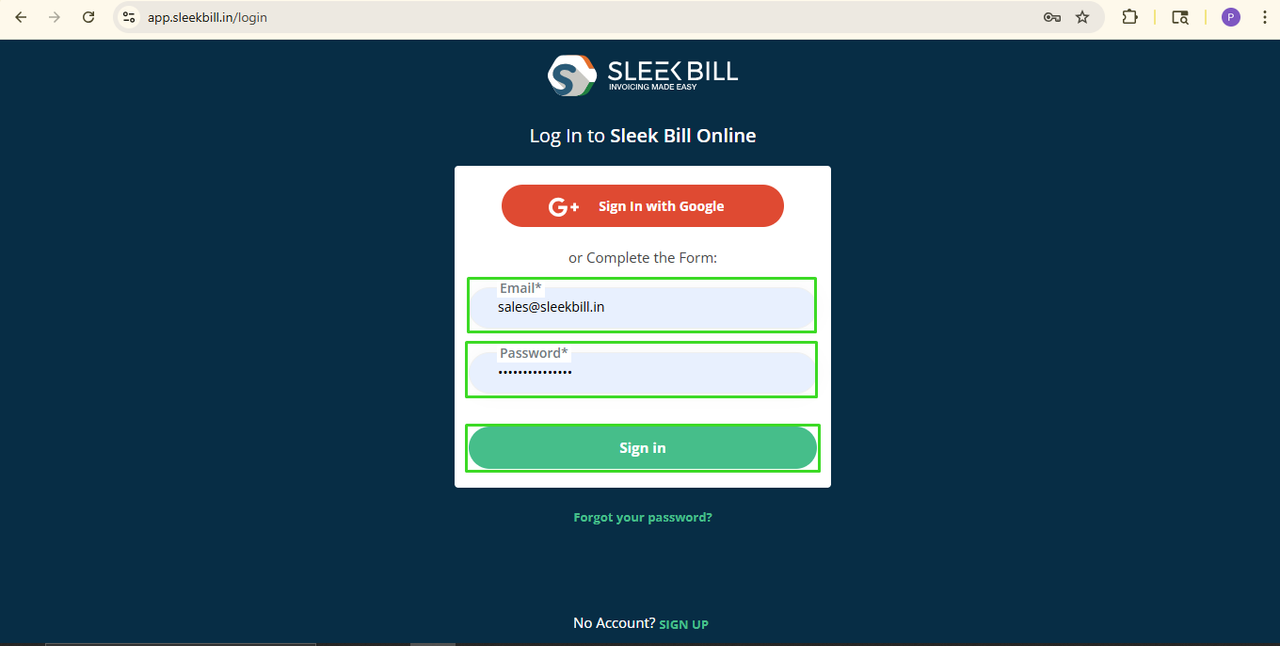
 Step 3: Enter your email address and password, then click Sign In
 Step 4: After logging in, you will enter the Sleek Bill dashboard. Then click on the preferences tab.
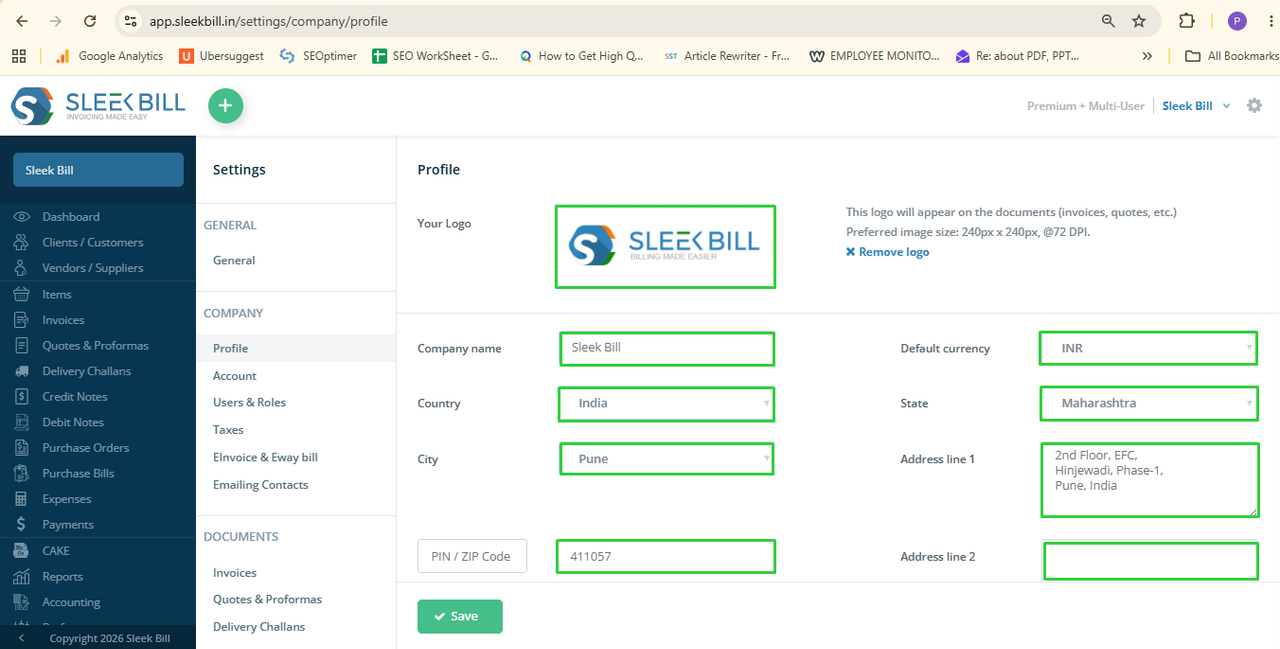
 Step 5: Under the Company section, click on the Profile Tab. Company Profile
Screen
Step 5: Under the Company section, click on the Profile Tab. Company Profile
ScreenOn this screen,
you can update:
- Upload Company Logo, Enter Company Name, Select Country, Select State, Select City, Enter PIN / ZIP Code, Select Default Currency, Address Line 1, Address Line 2.
- Enter email, Phone, GSTIN, Contact Name, Website, Taxation type, Service Tax No, Tax inclusive rates
Contact Name, Website, Taxation Type, Service Tax No, Tax inclusive rates
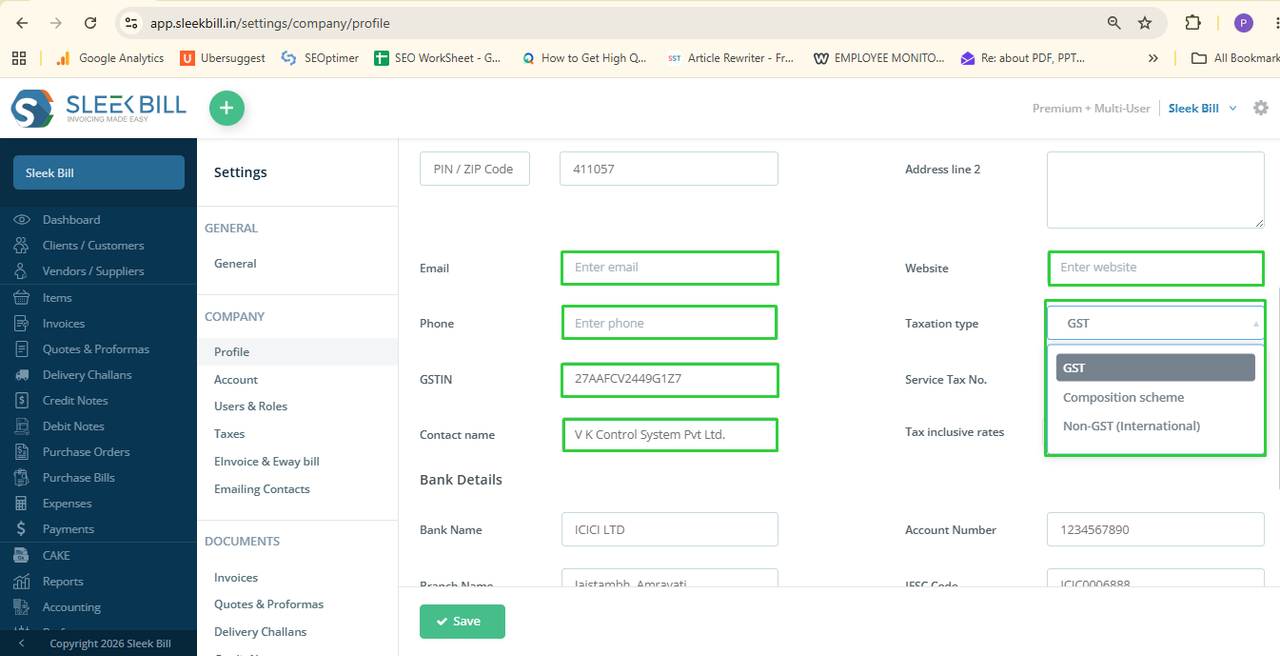
- Enter Bank Details: Bank Name, Account Number, IFSC Code, SWIFT code, Account holder name, Branch name, AD code, UPI ID, IBAN (International Bank Account Number), SORT Code
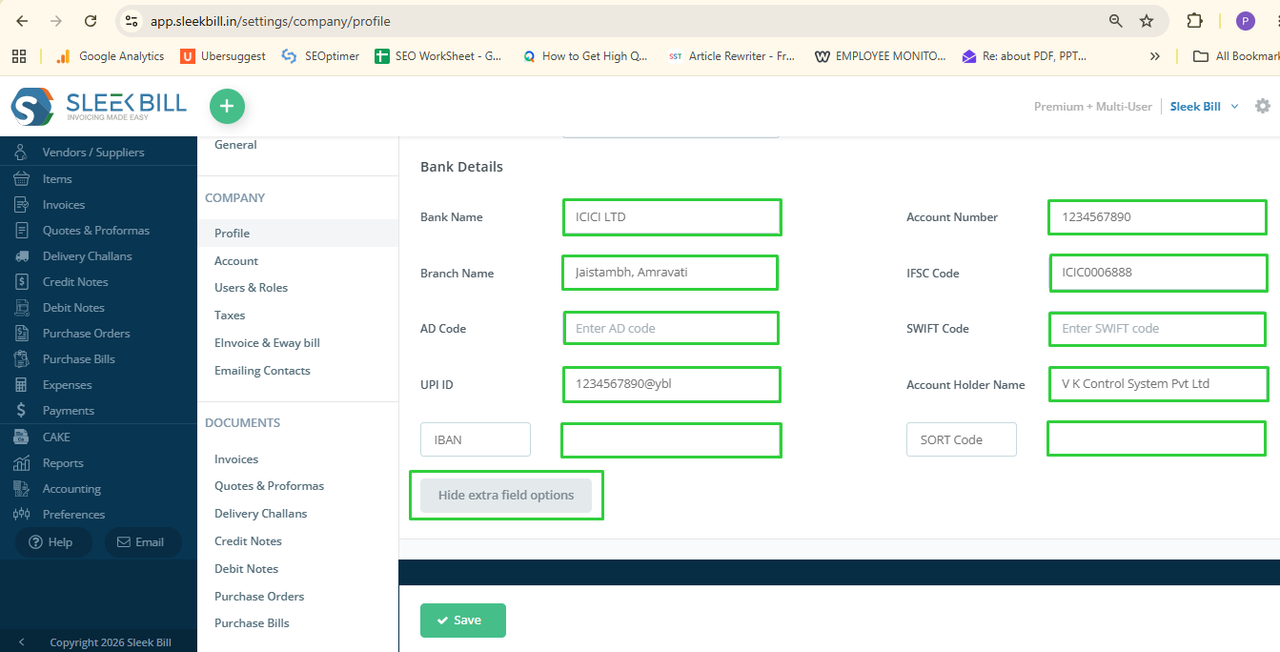
Click on the Hide extra field option button
Enter
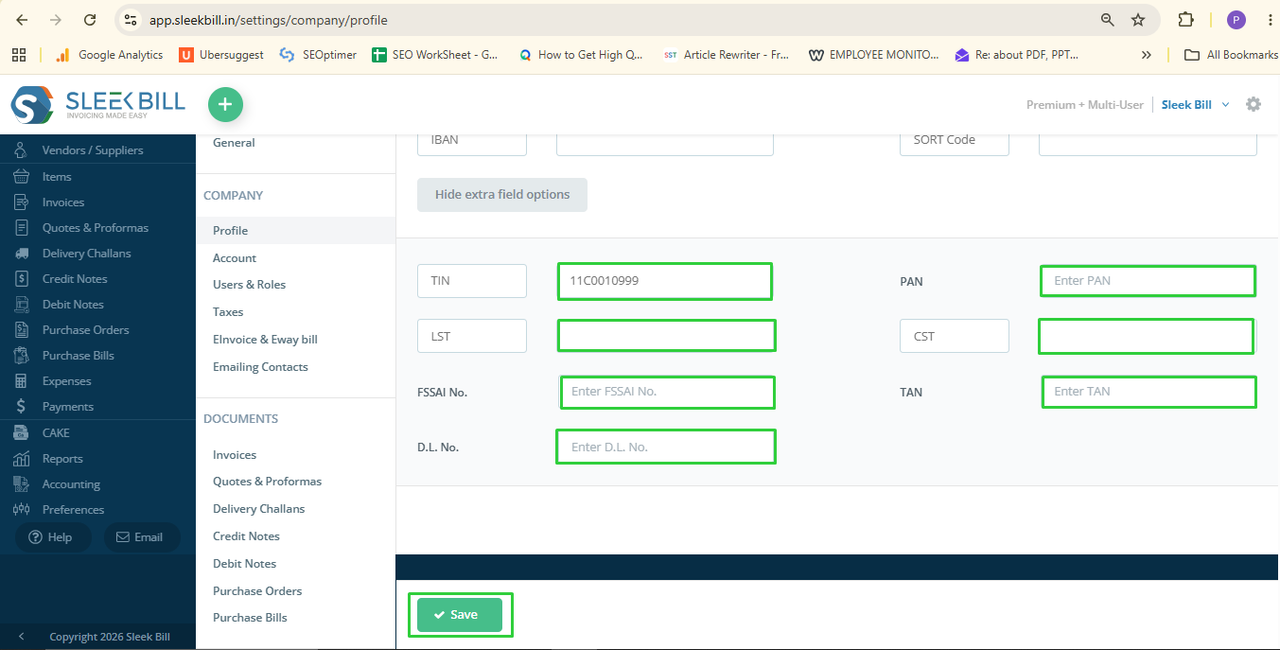 Step 5: Click Save once
you have entered all the required details.
Step 5: Click Save once
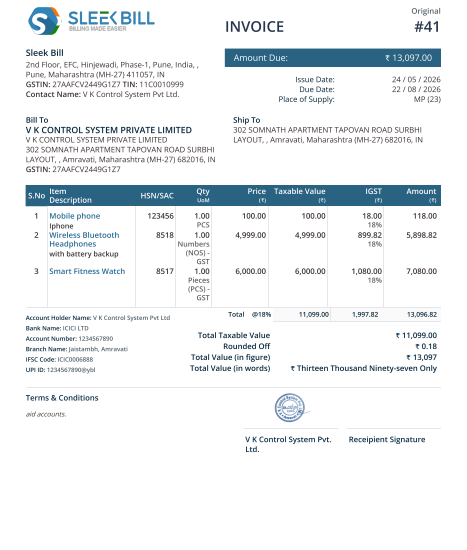
you have entered all the required details.Your company profile information will show through on your sales invoices, quotes, delivery challans, purchase bills, and other business documents from now on.
Conclusion
Having a complete and accurate company profile in Sleek Bill assists you in creating documents that look professional and get your business details displayed properly. It only takes a couple of minutes to update your profile details.
Was this article helpful?