How to Reset Financial Year in Sleek Bill?
Hello Sleek Bill users, welcome to the Sleek Bill Knowledge Hub! In this guide, we’ll understand how to reset the financial year in Sleek Bill and why it’s important for your business.
Why Reset Financial Year?
India has its financial year from April to March; therefore, setting its starting date to April 1 is highly significant.
- Stay Legal with GST: Resetting helps you keep your GST reports (like GSTR-1) clean and accurate. Old data won’t mix with the new financial year, which keeps you compliant with government rules.
- Start Fresh Invoice Numbers: Starting a new numbering series (such as changing from 24-25 to 25-26) may start from the invoice number.
This will keep your accounts clean and organized for audit purposes.
Steps to Reset Financial Year in Sleek Bill Step
Step 1: Open your browser and go to www.sleekbill.in
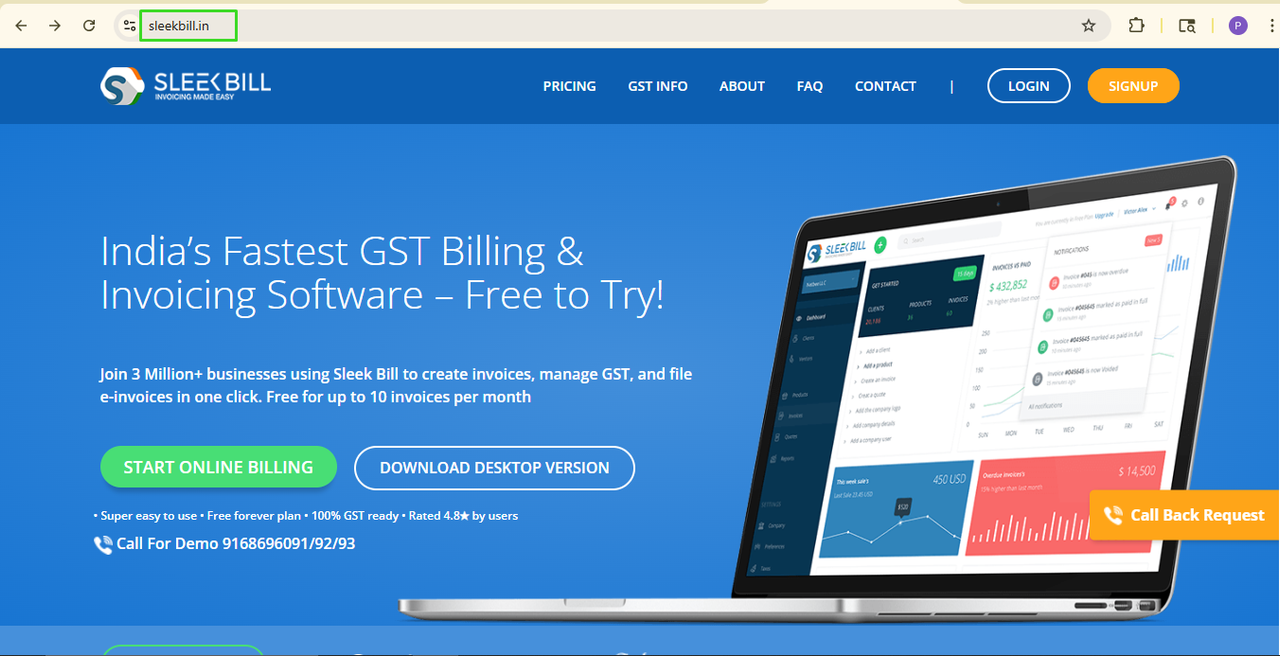
Step 2: Click on the Login Button.

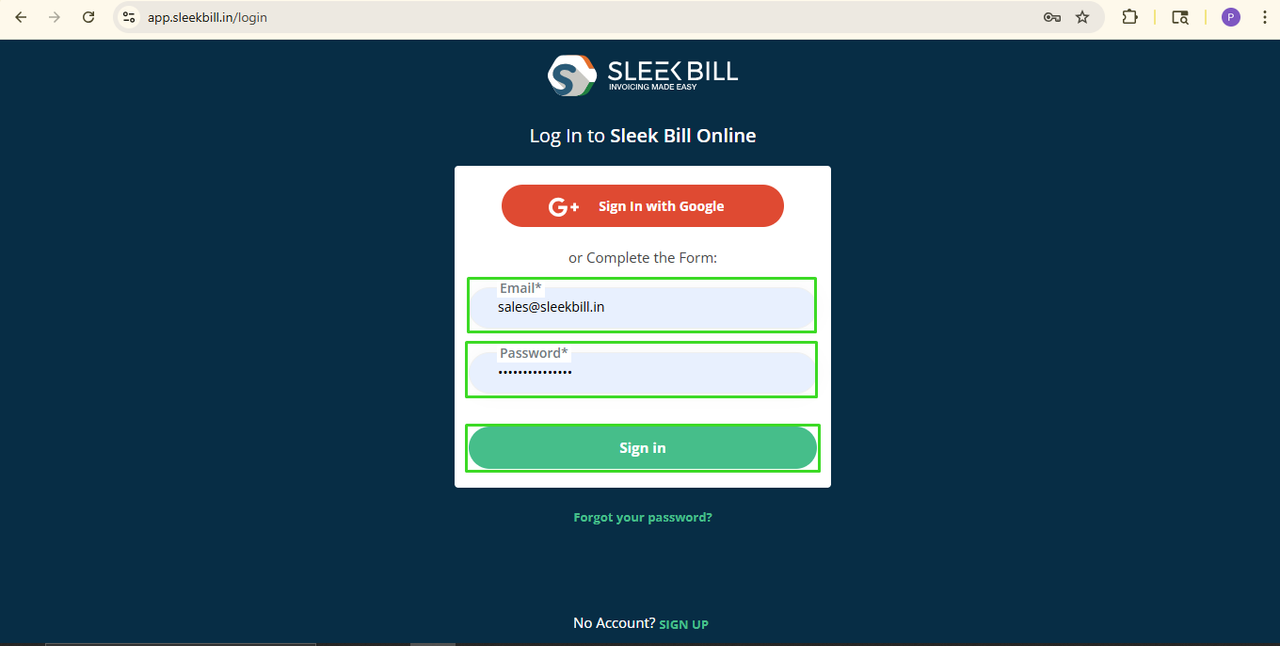
Step 3: Enter your email ID and password, and click on the Sign in button.
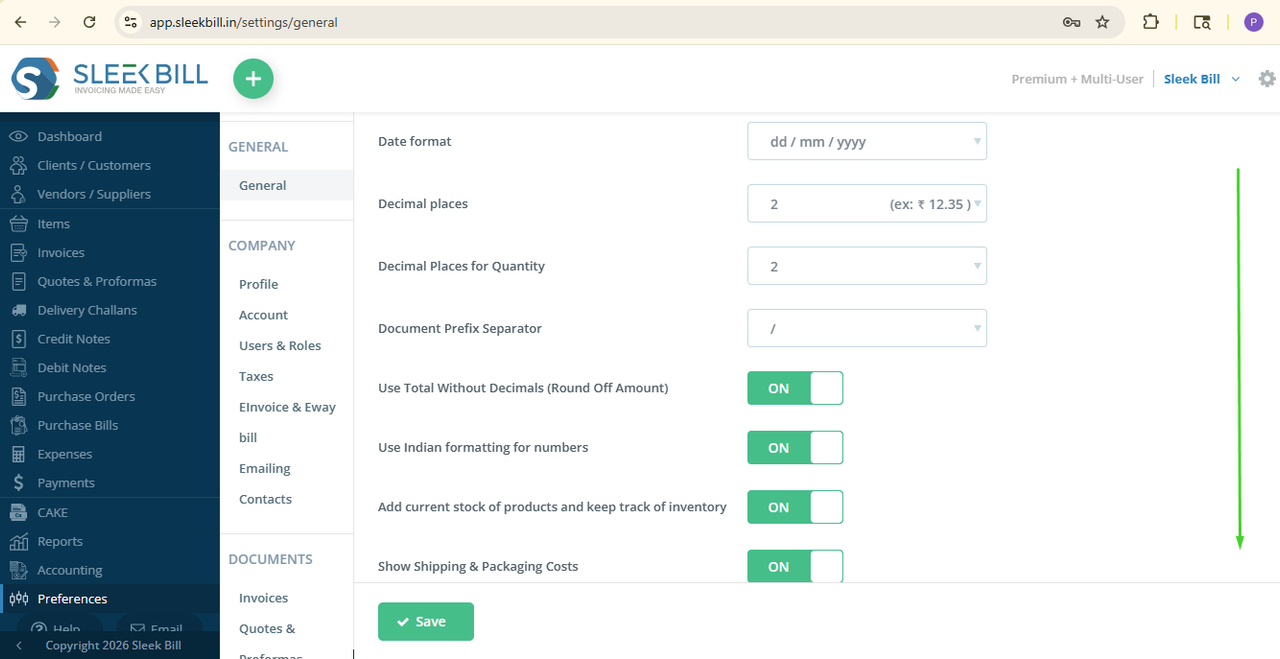
Step 4: Once you are on the dashboard, scroll down and click on the Preferences Tab.

Step 5: In the General tab, scroll down
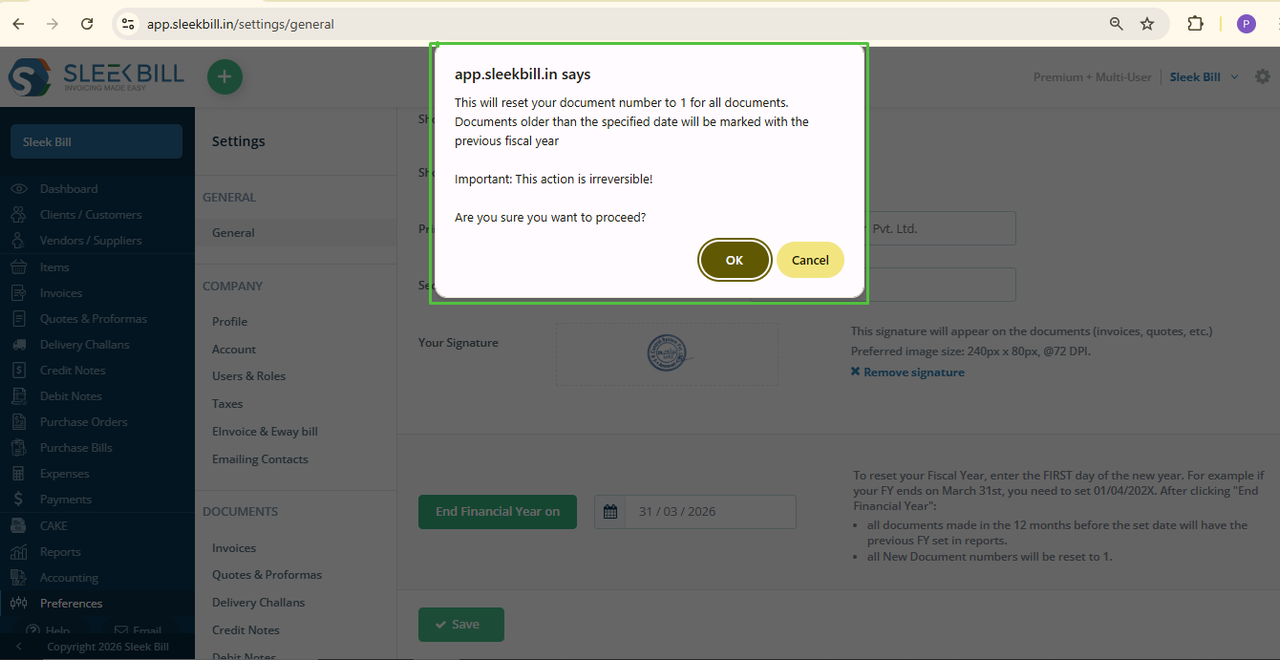
 Step 6: Find “End Financial Year On” and select 31st March of the last year. Click on the End Financial Year On button.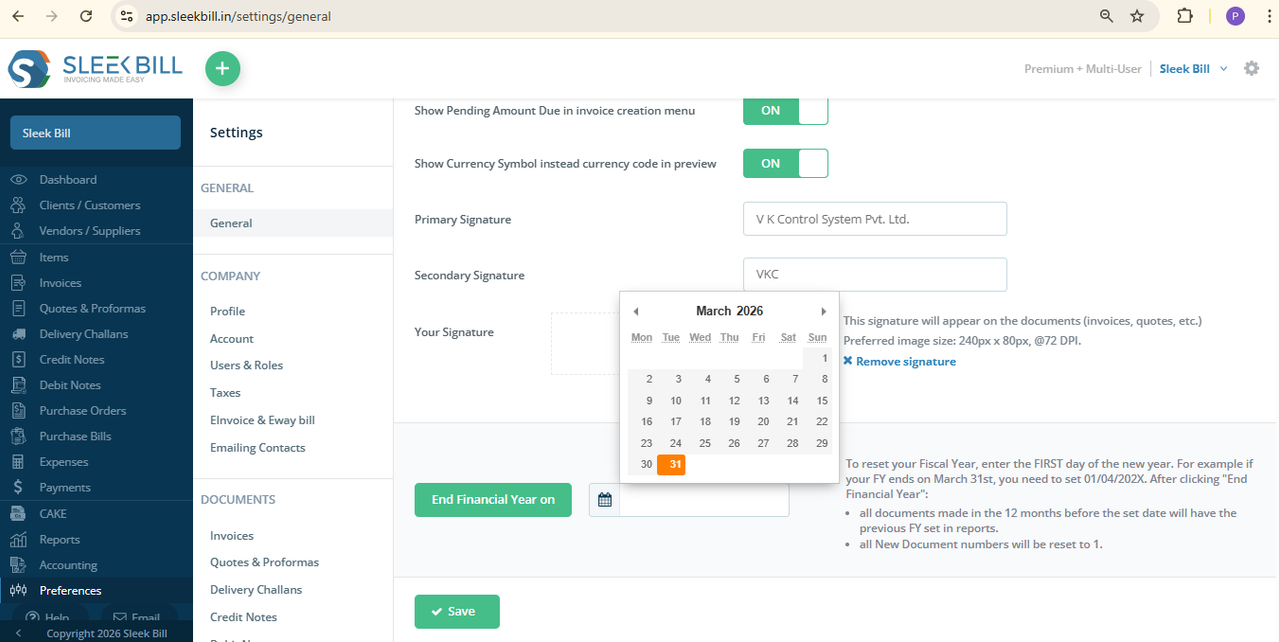
Step 7: Popup will appear, read note carefully. Click on OK Button.
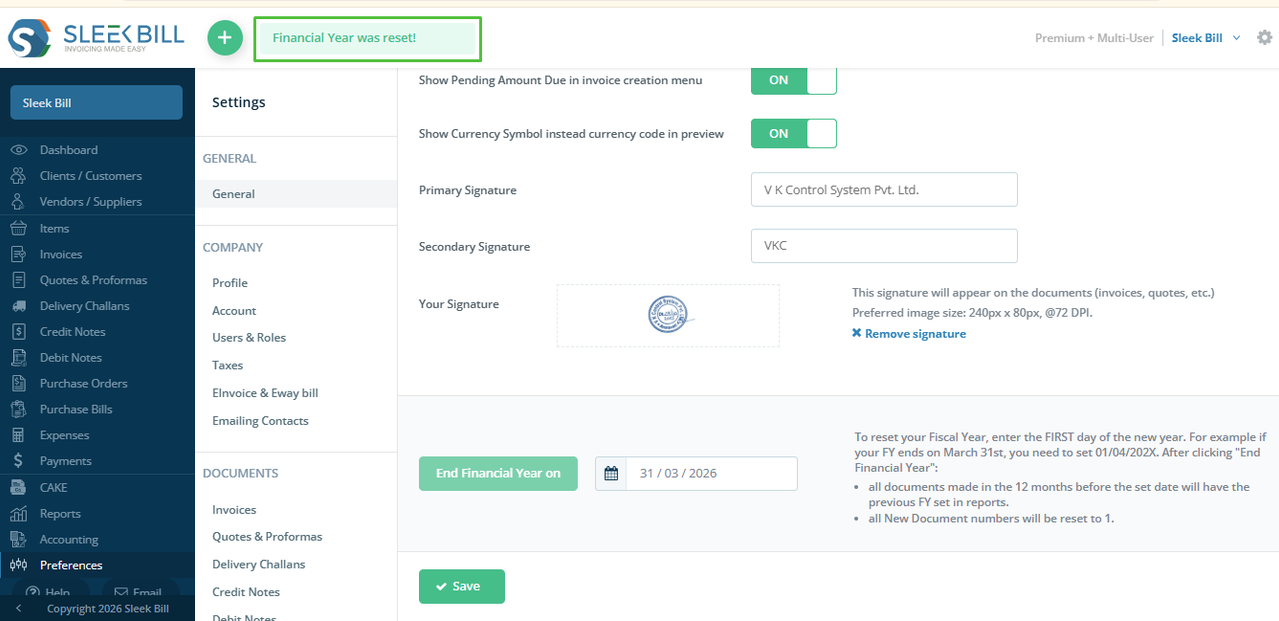
Step 8: Again, popup will appear on top of screen, "Financial Year was reset"
 Step 9: Click on Save Button.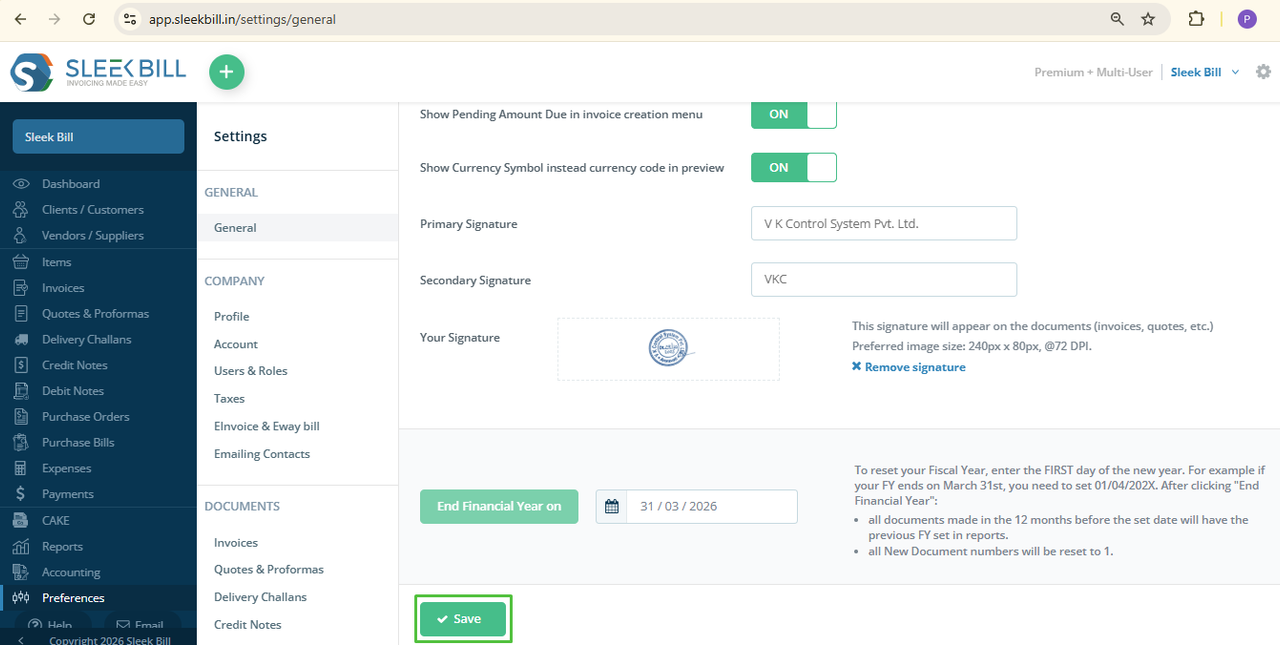
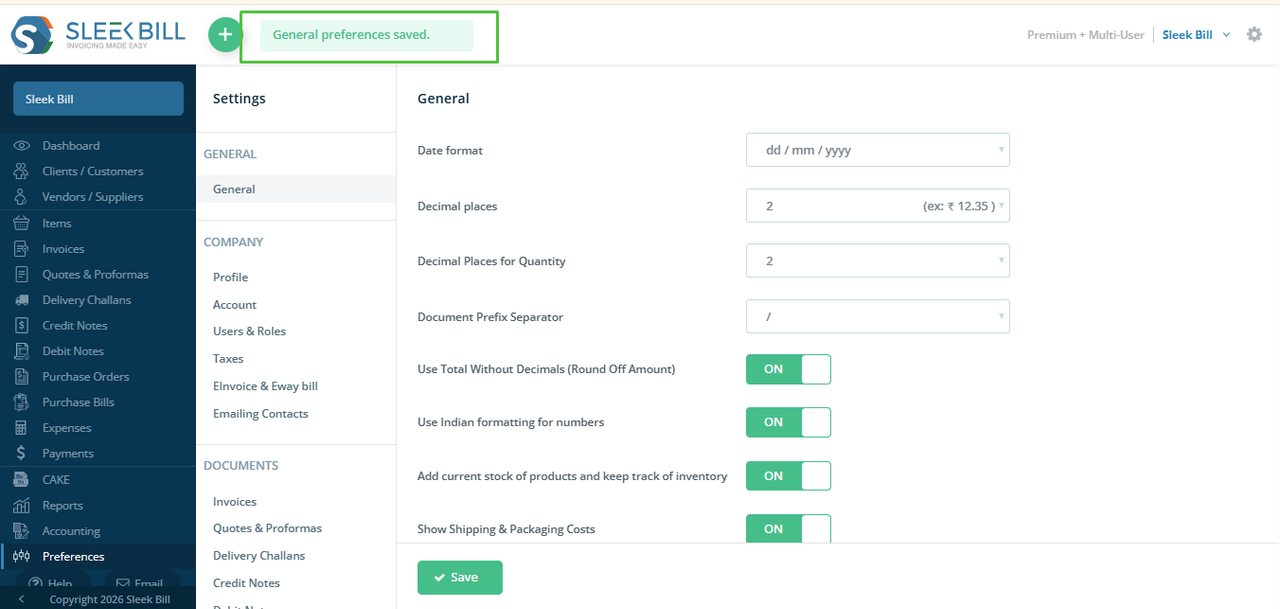
Step 10: "General preferences saved" message will appear. That’s it! Your financial year is now reset.
Conclusion
Resetting your financial year in Sleek Bill is a simple but important step. It keeps your data clean, organized, and your GST reports accurate, and your billing system well-organized. Just follow these easy steps every year and manage your business smoothly without any confusion.
Was this article helpful?