🧾 Billing & Invoicing

How to Show Contact Person In Vendor Section In Purchase Order

Last updated: Jun 18, 2026 9 views

Managing vendor information efficiently is important for smooth purchasing operations. In Sleek Bill, you can display the vendor's contact person details directly in the Purchase Order, making communication faster and reducing confusion during order processing.

Steps to Show Contact Person in the Vendor Section


Step 1 :  Open your browser and visit www.sleekbill.in. Click on the Login button available at the top-right corner of the page.

Image

Step 2 : Enter your registered Email ID and Password, then click on Sign In.

Image

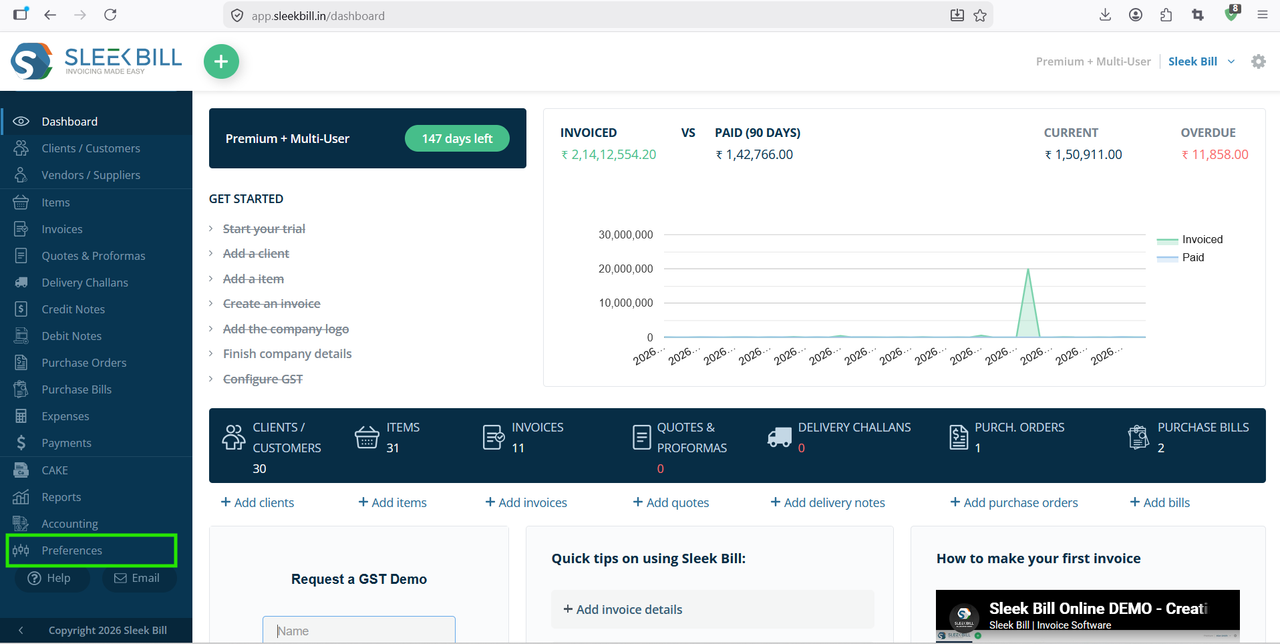
Step 3 : After successful login, you will be redirected to the dashboard. From the left-side menu, click on Preferences.
Image

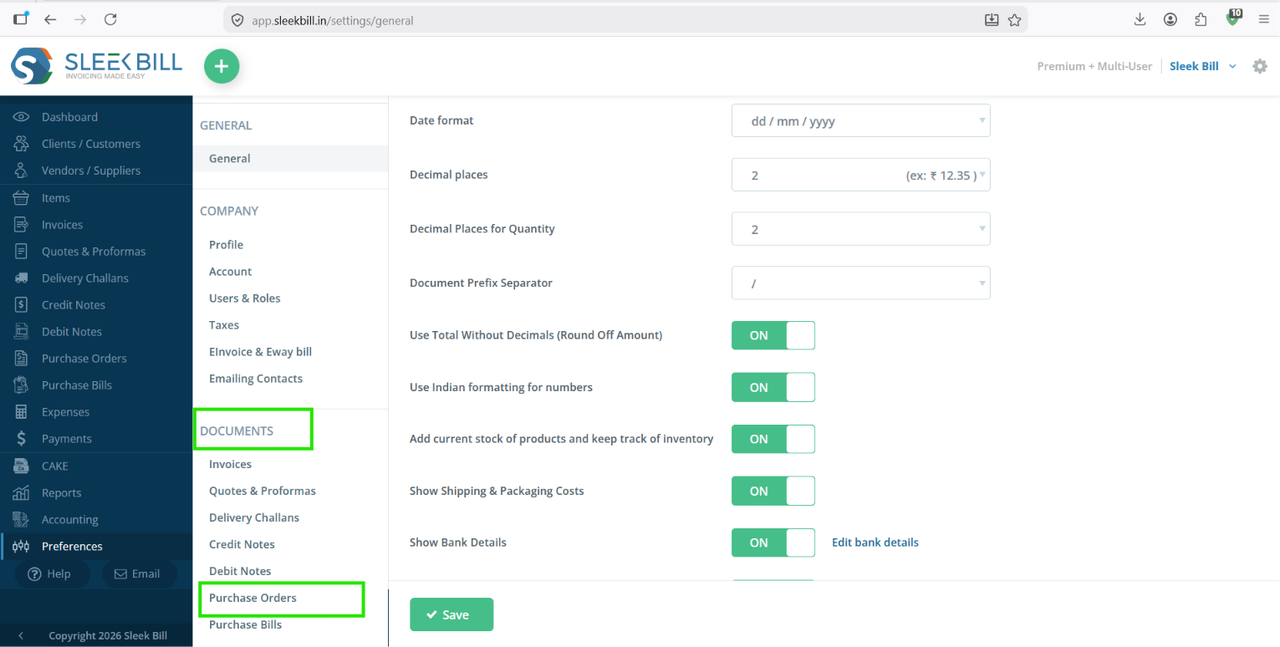
Step 4: Inside Preferences, follow this path: Documents → Purchase Order. Here you will find various customization options related to debit notes.

Image

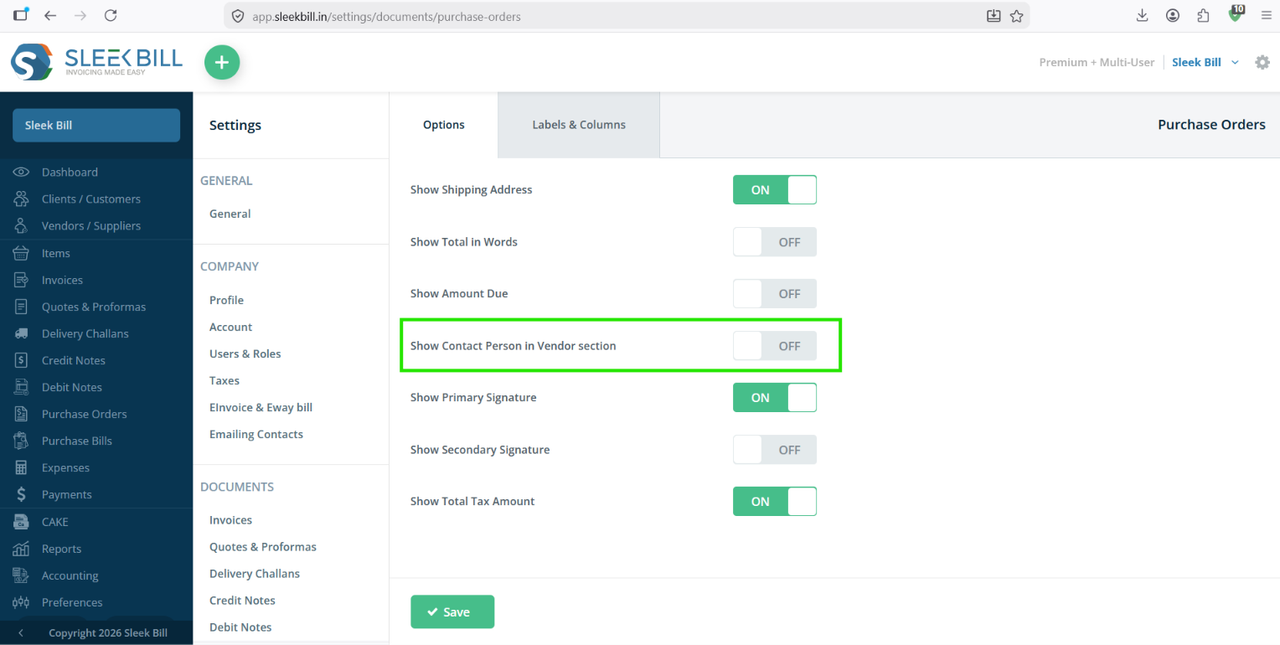
Step 5: Locate the option Show Contact Person in Vendor Section and enable the toggle button ON.

Image

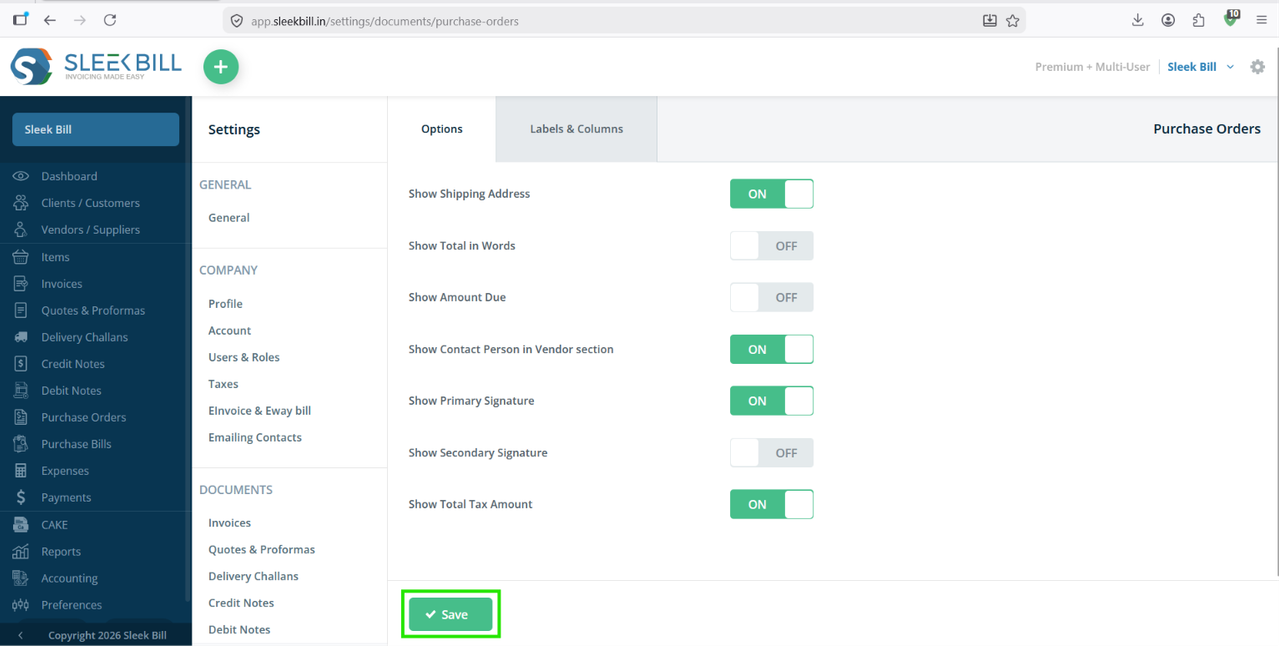
Step 6: Click on the Save button to apply the changes.

Image

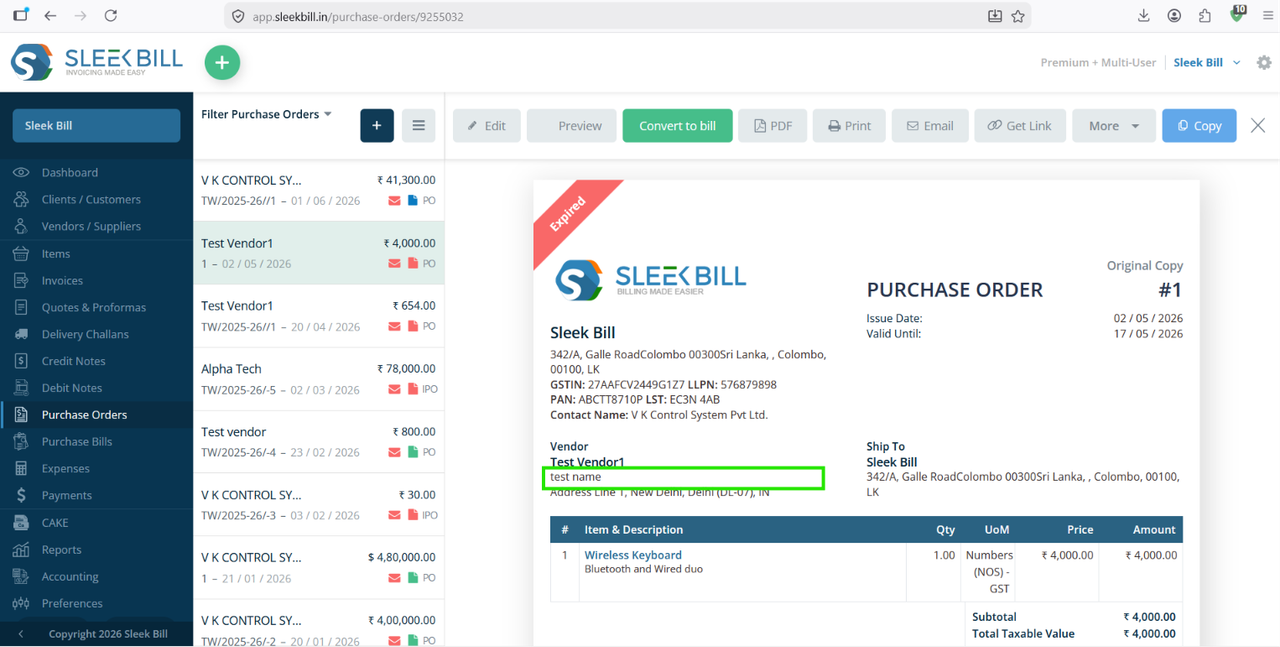
You will now see the Contact Person displayed in the vendor section of the purchase order.
Image


Benefits of Displaying the Contact Person

  • Quick identification of the vendor representative.
  • Improved communication between buyers and suppliers.
  • Reduced chances of contacting the wrong person.
  • Professional and organized Purchase Orders.

Conclusion

Displaying the contact person in the vendor section of your Purchase Order helps streamline communication and improves document clarity. With a few simple customization steps in Sleek Bill, you can ensure that every Purchase Order includes the correct vendor contact information for faster and more efficient business transactions.

#purchase order #gst purchase order #purchase order generator #purchase order format

Was this article helpful?