How to Show Sleek Bill branding in Email?
Hello Sleek
Bill users, welcome to the Sleek Bill Knowledge Hub. Today, we’ll learn how to Show
Sleek Bill branding in email
When you send
invoices to your clients, every small detail matters. One such useful feature
in Sleek Bill is “Show Sleek Bill Branding in Email.”
Why should you use this feature?
Adding Sleek
Bill branding in your emails has a few simple benefits:
- It makes your emails look more professional and trustworthy.
- Clients can easily understand that
the invoice is generated using proper billing software.
- Helpful for new users to build credibility
with customers.
- Helpful for new users to build credibility
with customers.
Steps to
Enable Sleek Bill Branding in Email
Just follow
these simple steps:
Step 1: Go to the Sleek Bill website https://sleekbill.in
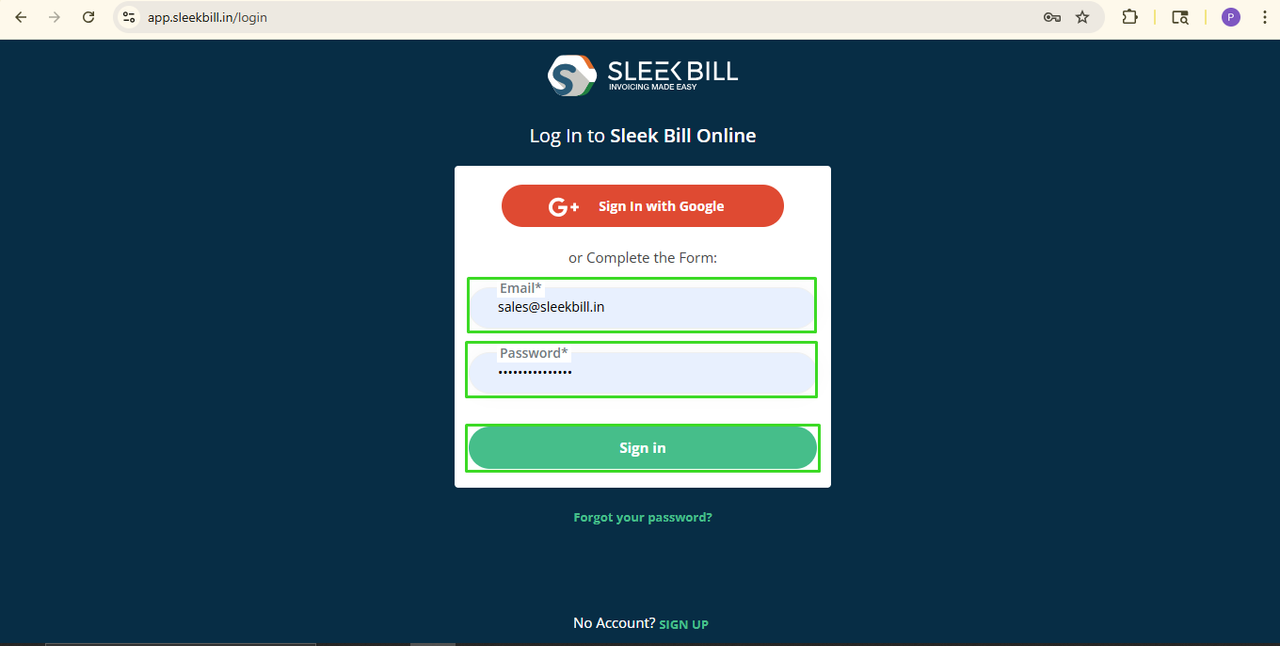
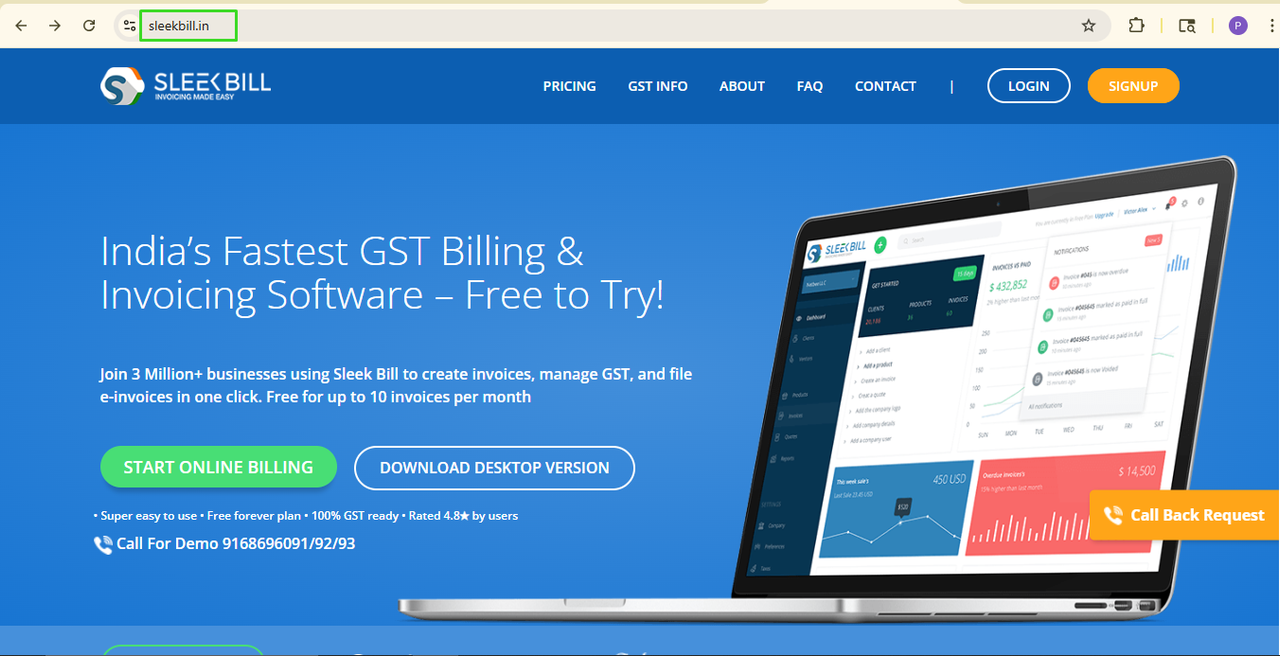 Step 2: Click on Login button
 Step 3: Login to your account
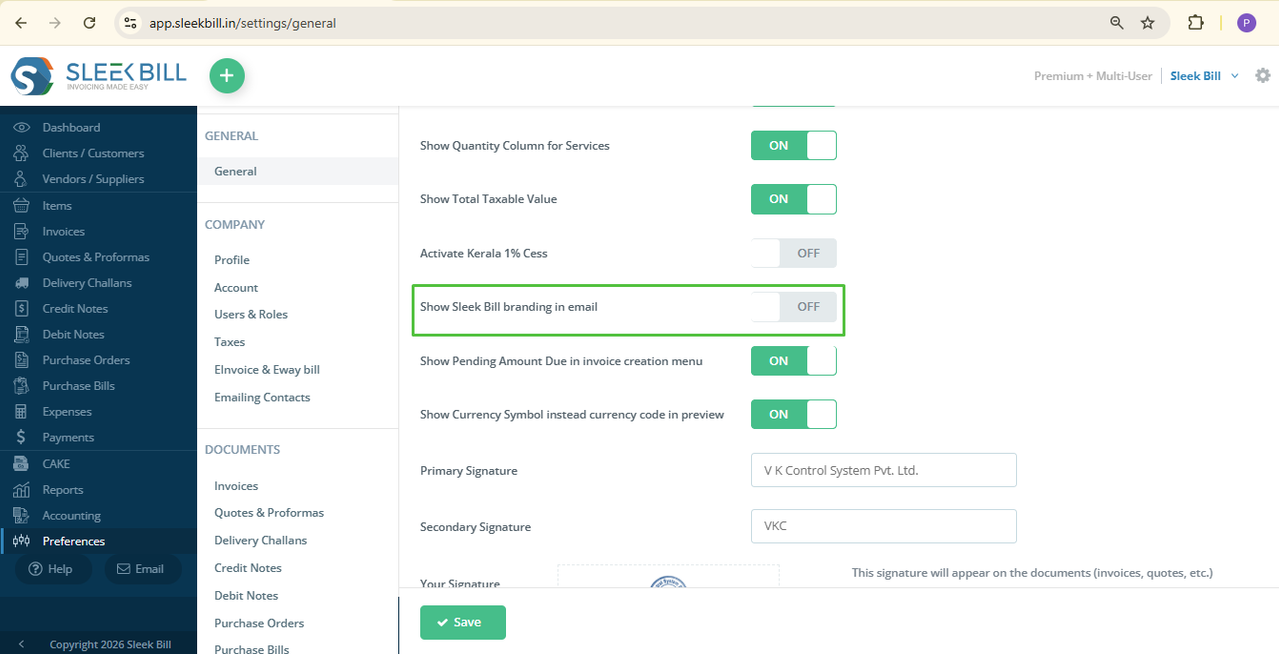
  Step 4: Once you enter the dashboard, click
on the Preferences tab.
Step 4: Once you enter the dashboard, click
on the Preferences tab.
 Step 6: Click on Save button. Done! Your setting is now active.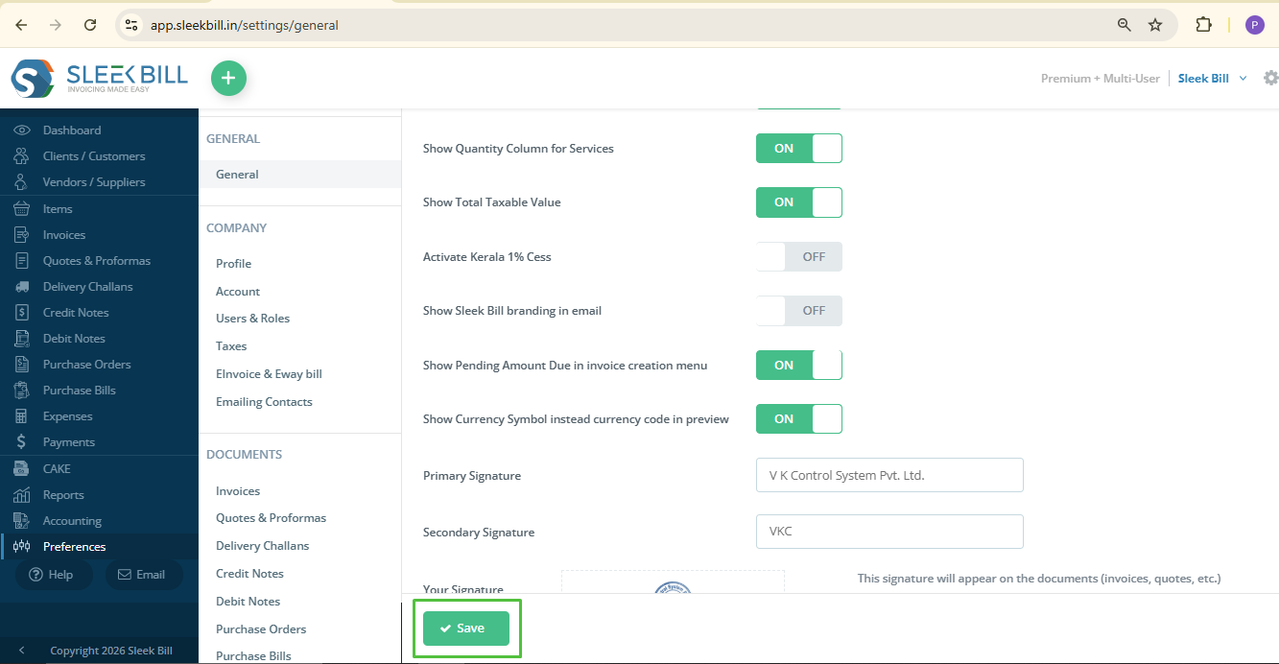
How to check
it in email?
Now let’s see how it works:
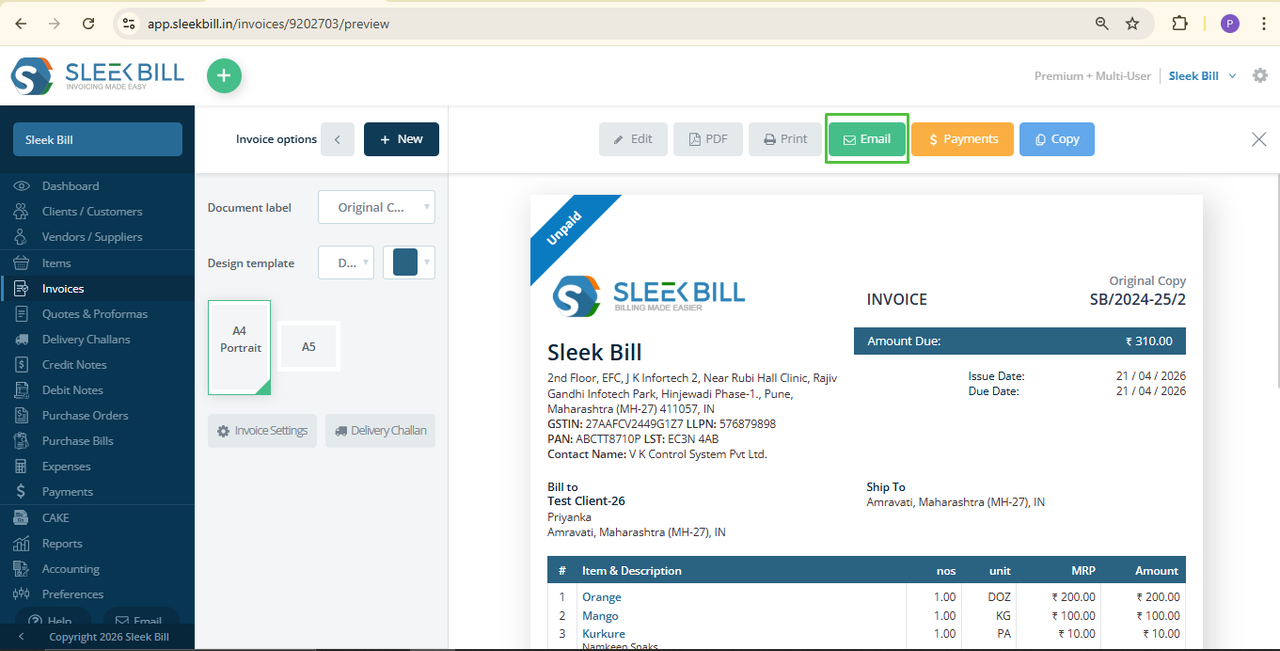
- Go to Invoices → New → Tax Invoice
- Select client and product
- Preview and Save button
- Click on the Email button
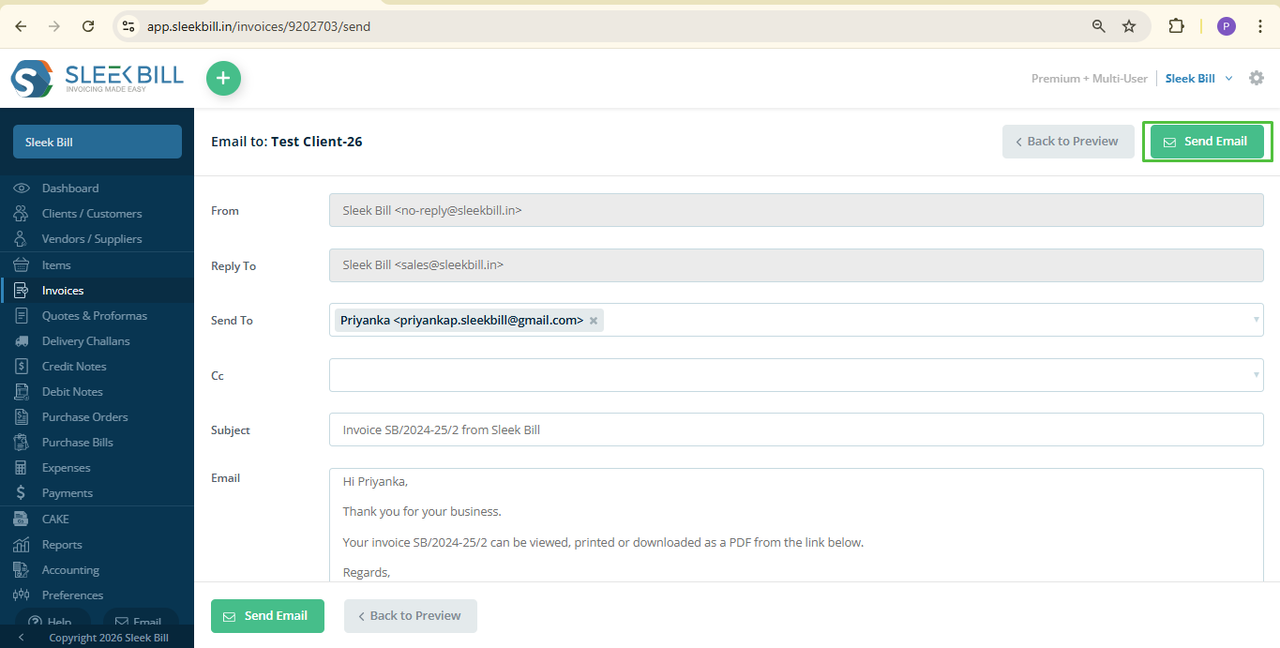
- Send Email
- Now open your email.
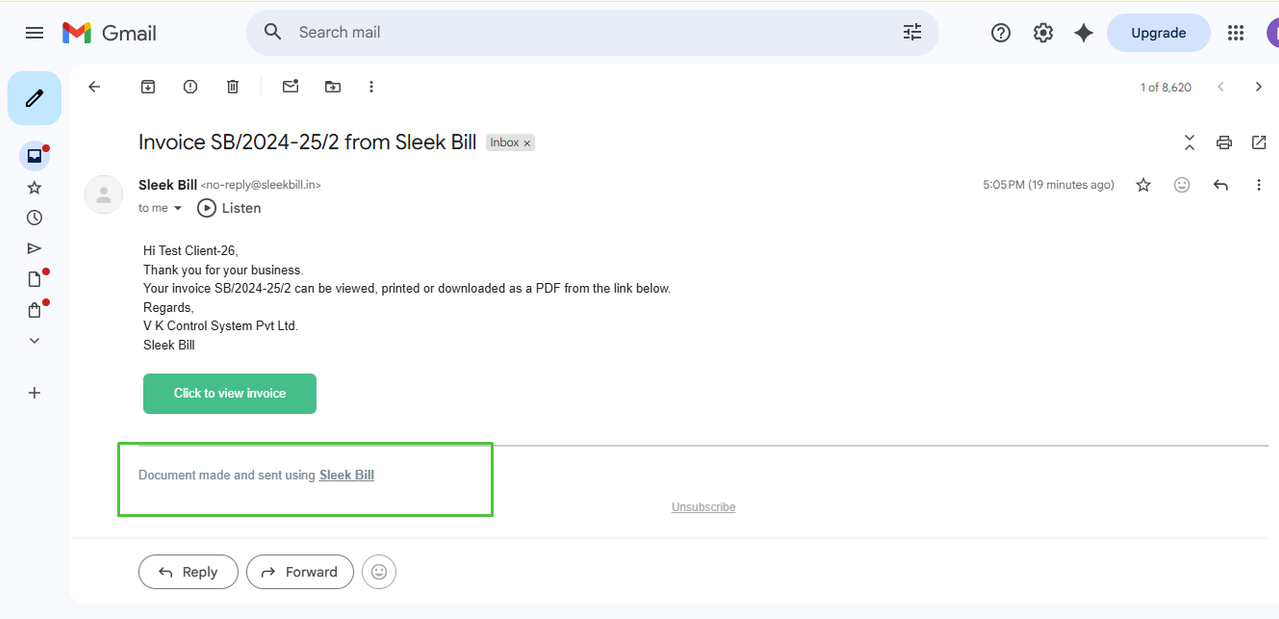 At the bottom, you will see this line:
“Document made and sent using Sleek Bill”
Conclusion
This is a small
feature, but it creates a big impact on your business image. It helps
your invoices look more professional and builds trust with your clients.
So, go ahead
and enable this setting in just a few clicks and make your emails look smarter
with Sleek Bill!
Was this article helpful?