How to Show Total Tax Amount in Purchase Order in Sleek Bill
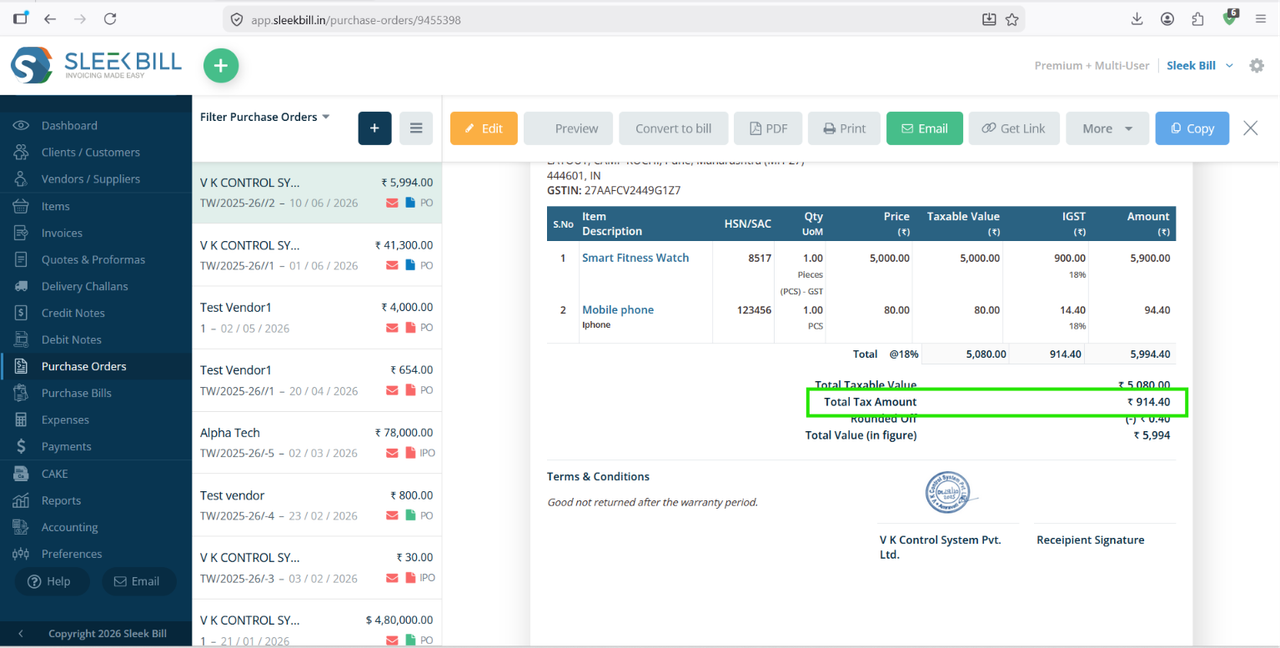
A Purchase Order (PO) is an important document used to communicate purchase details with vendors. Displaying the Total Tax Amount in your Purchase Order helps maintain transparency, simplifies tax calculations, and ensures vendors have a clear understanding of the applicable taxes on the order.
With Sleek Bill, you can easily enable the option to display the total tax amount in your Purchase Orders. This feature is especially useful for businesses that want detailed tax information included in their procurement documents.
In this guide, we'll walk you through the simple steps to show the Total Tax Amount in your Purchase Order.
Why Show Total Tax Amount in Purchase Orders?
Displaying the total tax amount offers several benefits:
- Provides clear tax breakdowns for vendors.
- Improves purchase documentation accuracy.
- Helps in GST compliance and record-keeping.
- Reduces confusion regarding tax calculations.
- Makes purchase orders more professional and informative.
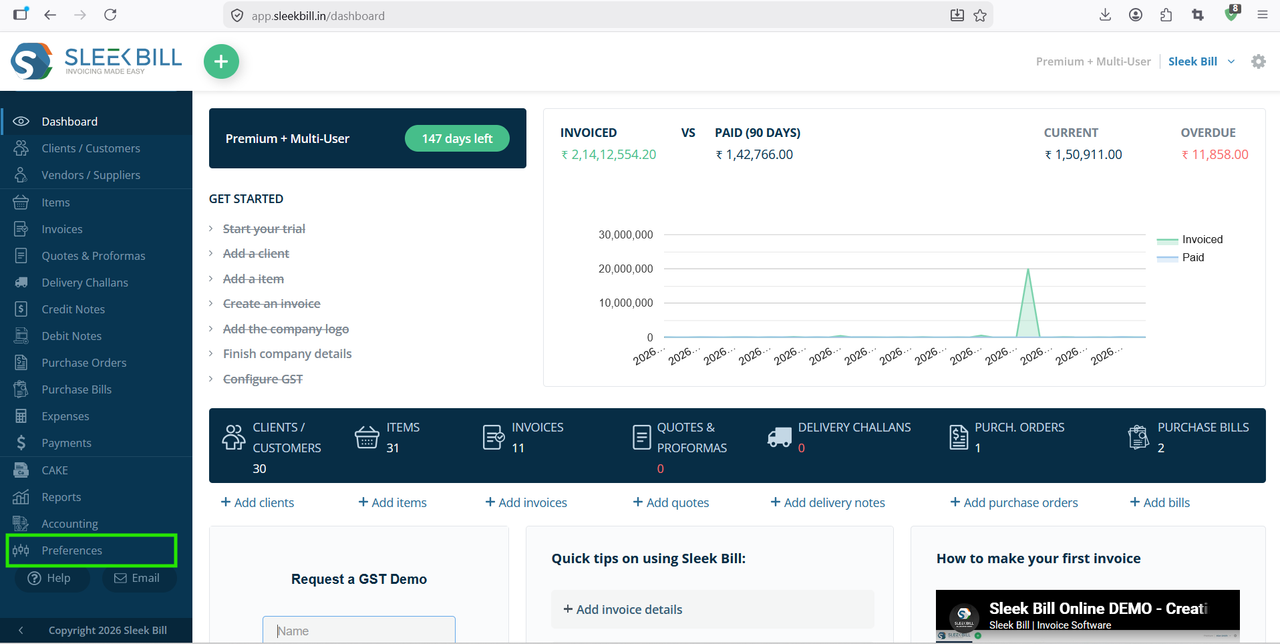
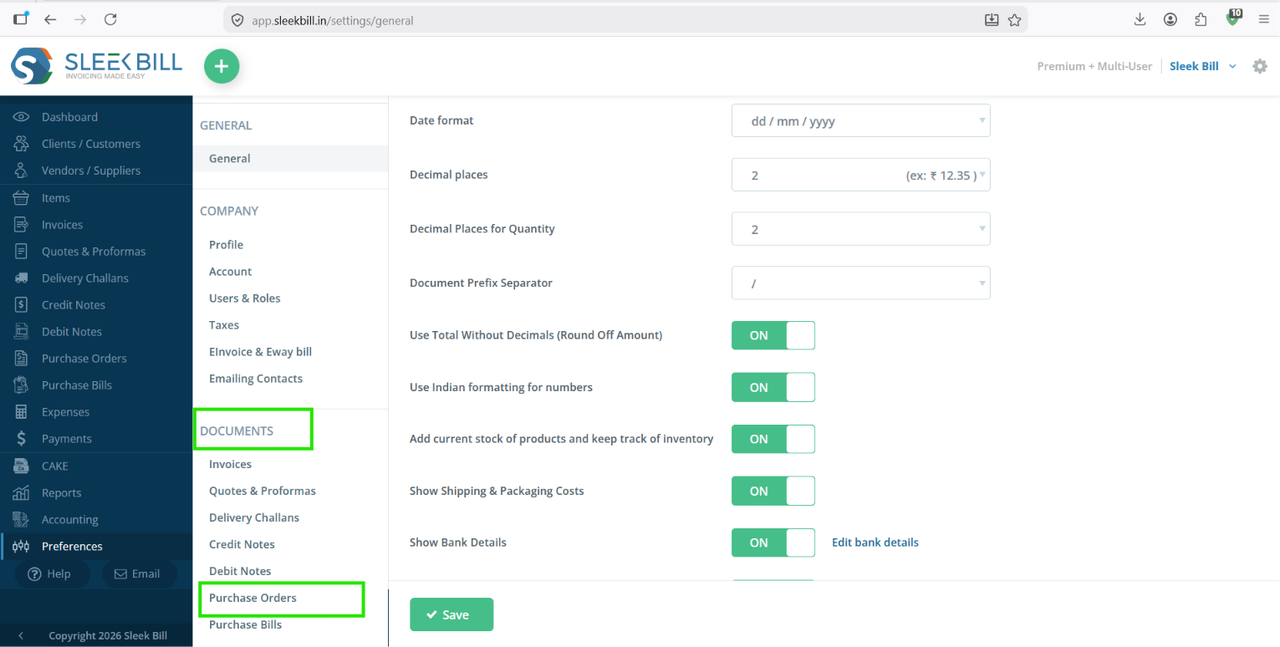
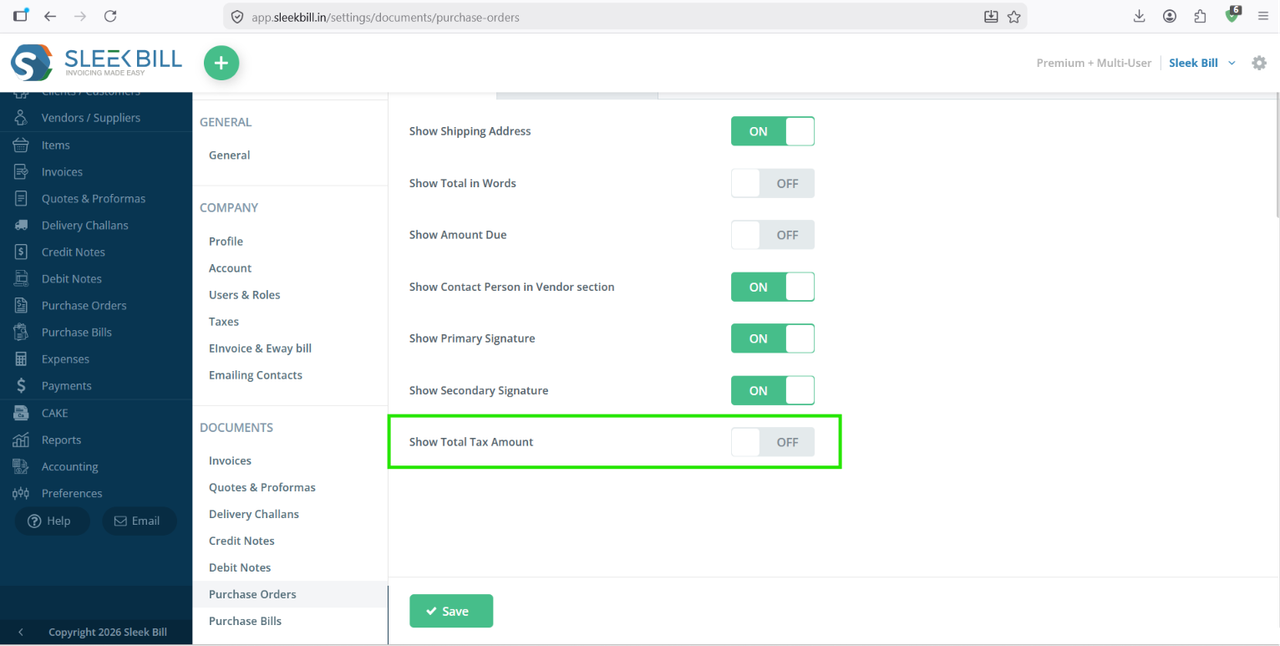
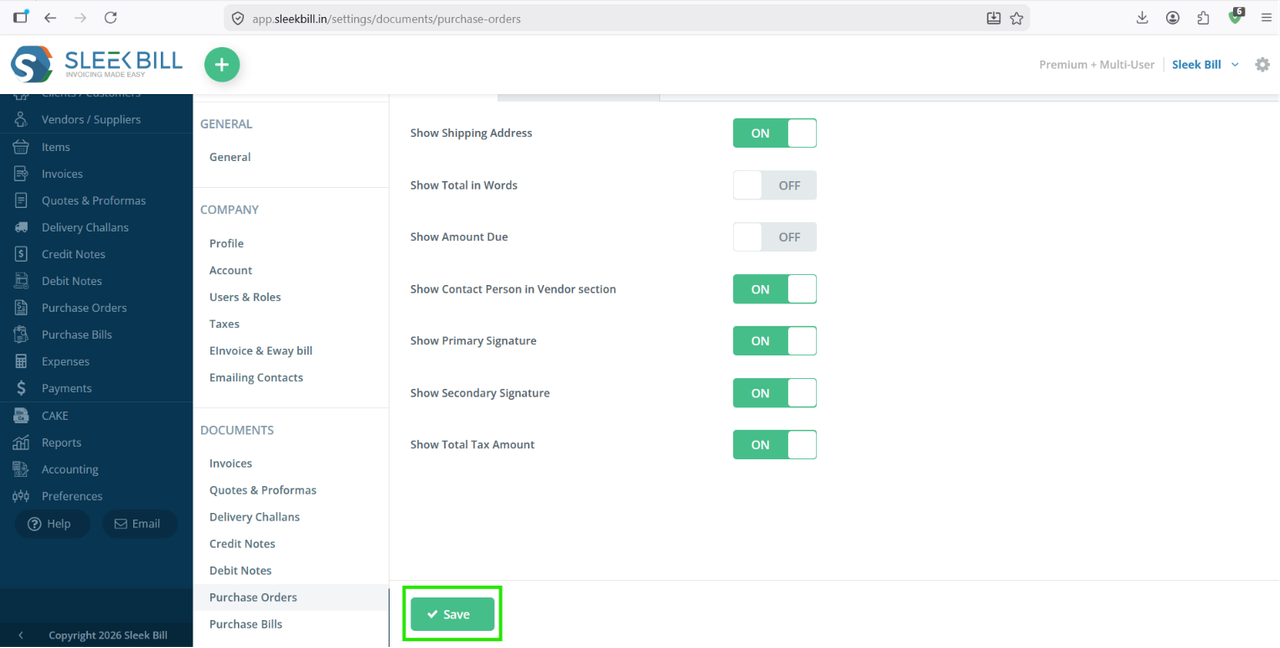
Steps to Show Total Tax Amount in Purchase Order
.png)
.png)
Benefits of This Feature
- Displays complete tax information on purchase orders.
- Helps vendors understand the tax component instantly.
- Improves internal purchasing records.
- Supports GST-ready documentation.
- Enhances the professional appearance of your purchase orders.
Conclusion
Showing the Total Tax Amount in Purchase Orders helps businesses maintain transparent vendor communication and accurate purchase records. With Sleek Bill, enabling this feature takes only a few clicks and ensures that your purchase orders contain all essential tax details.
Was this article helpful?