How to Show Amount Due in Purchase Order in Sleek Bill?
Hello Sleek Bill users, welcome to the Sleek Bill Knowledge Hub.
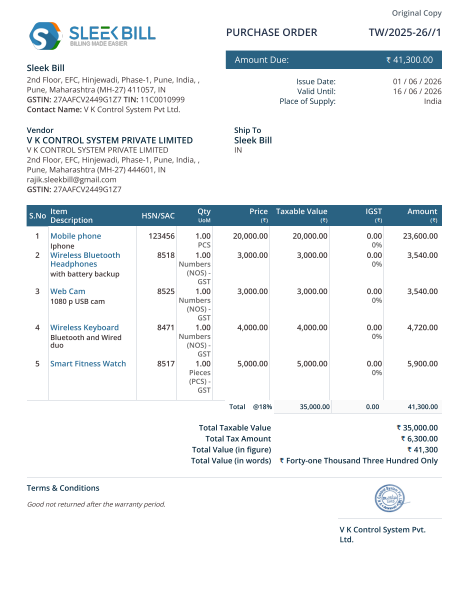
In this article, we will learn how to enable the "Show Amount Due" option in Purchase Orders. In general terms, the supplier could even accept a deposit or installment payment before settling the bill in some business cases. By using the Show Amount Due function, you could show the ‘Amount Due’ to your supplier on your Purchase Orders.
This feature
enables businesses to keep a clear record of purchases made, keep track of
outstanding payments, and it eliminates confusion where there is a pending
balance owed to the supplier. To activate Sleek Bill, this feature can be
enabled within a matter of minutes:
Helps track pending payments against Purchase Orders
Clearly displays the remaining payable amount
Improves transparency in supplier transactions
Reduces confusion when advance or partial payments are made
Keeps purchase records organized and professional
Simplifies payment follow-ups and account management
Helps maintain accurate financial records
Why Should You Use "Show Amount Due" in Purchase
Orders?
How to Enable the "Show Amount Due" Option in Sleek Bill?
Step 1: Open Sleek Bill Website. Open the Sleek Bill website. Then search for Sleek Bill and open the official website.
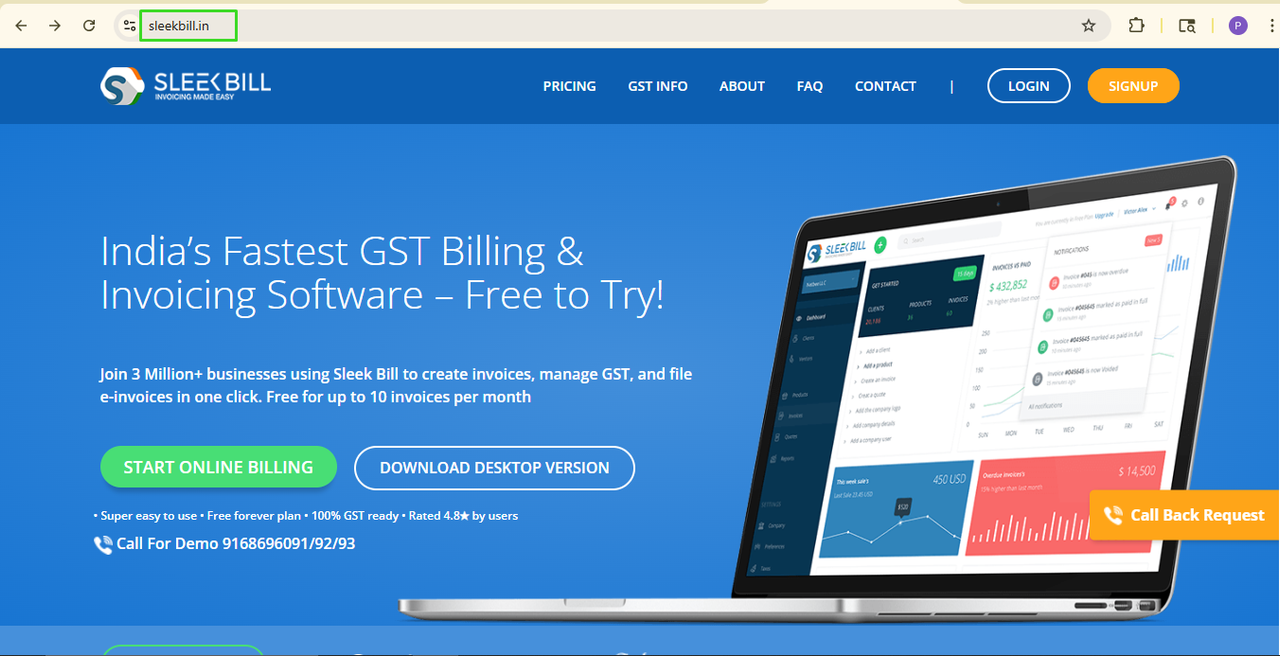
Step 2: Click on the Login Button. Now, click on the Login button available at the top left corner of the website.

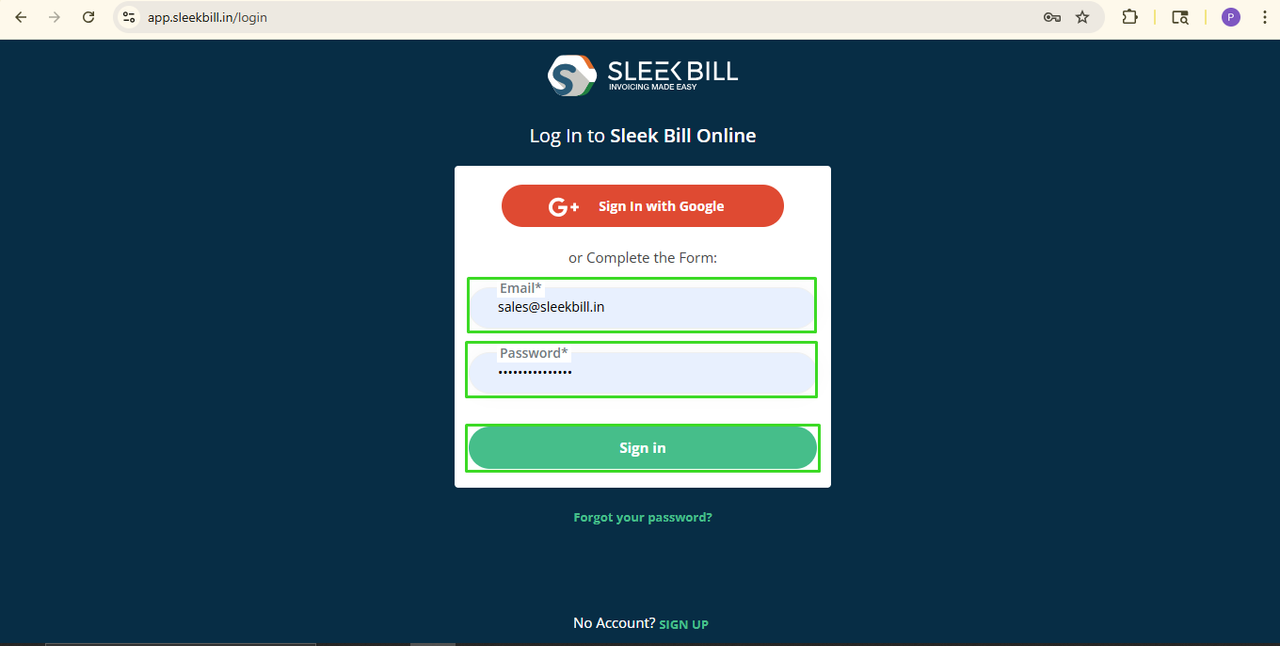
Step 3: Enter Login Details. Enter your login credentials and click on the Sign In button.
Step 4: Open Preferences Tab. After logging in, you will enter the Sleek Bill dashboard. Click on the Preferences tab.

Step 5: Click on the Purchase Bills Tab. Now open the Purchase Order settings tab.
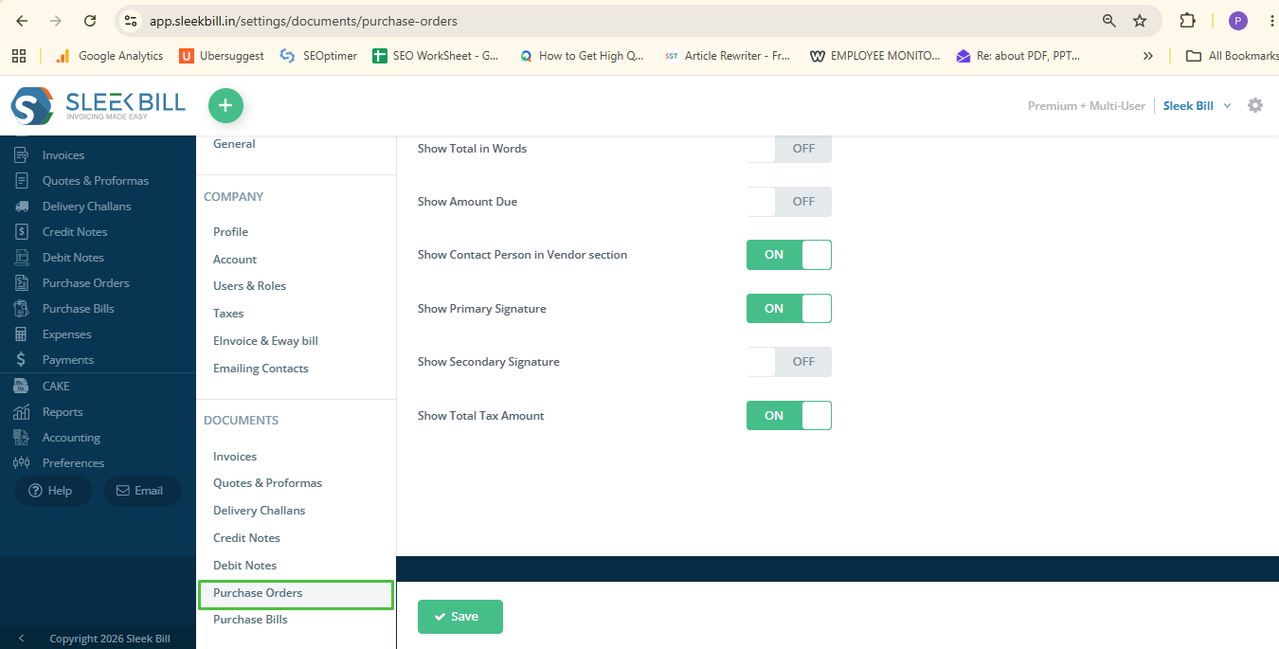
Step 6: Enable “Show Amount Due” Option. Find the option called "Show Amount Due" and turn it ON.
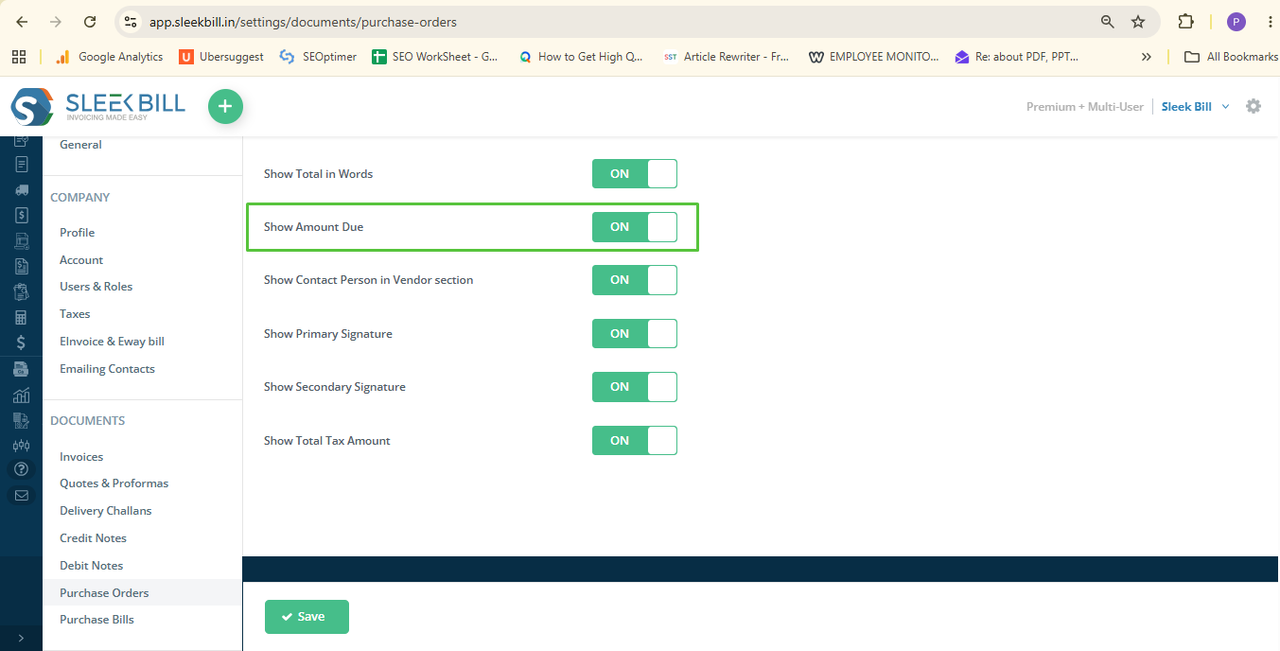
Step 7: Save the Settings
Finally, click
on the Save button to apply the changes successfully.
What Happens After Enabling This Option?
Once you enable the Show Amount Due option, every Purchase Order will automatically display the remaining unpaid balance amount. If an advance payment or partial payment has already been made to the supplier, the outstanding amount will be clearly shown on the Purchase Order.
This makes it
easier to monitor supplier payments, maintain accurate purchase records, and
ensure complete transparency in financial transactions. It also helps
businesses avoid missed payments and improve payment management efficiency.
Conclusion
The Show Amount
Due option is a simple yet valuable feature in Sleek Bill. This enables traders
to have any upcoming payments to suppliers, keep their invoice and purchase
records well organized and more transparent. You can generate more professional
and informative Purchase Orders with minimal effort with a few clicks.
Was this article helpful?