How To Add Bank Opening Balance In Sleek Bill Desktop
Keeping accurate bank records is an important part of managing your business accounts. In Sleek Bill Desktop, you can easily add your bank account details along with the opening balance and then view that balance in the Bank Book.
This guide explains how to enter your bank opening balance in Sleek Bill Desktop step by step.
Step 1: Open Sleek Bill Desktop
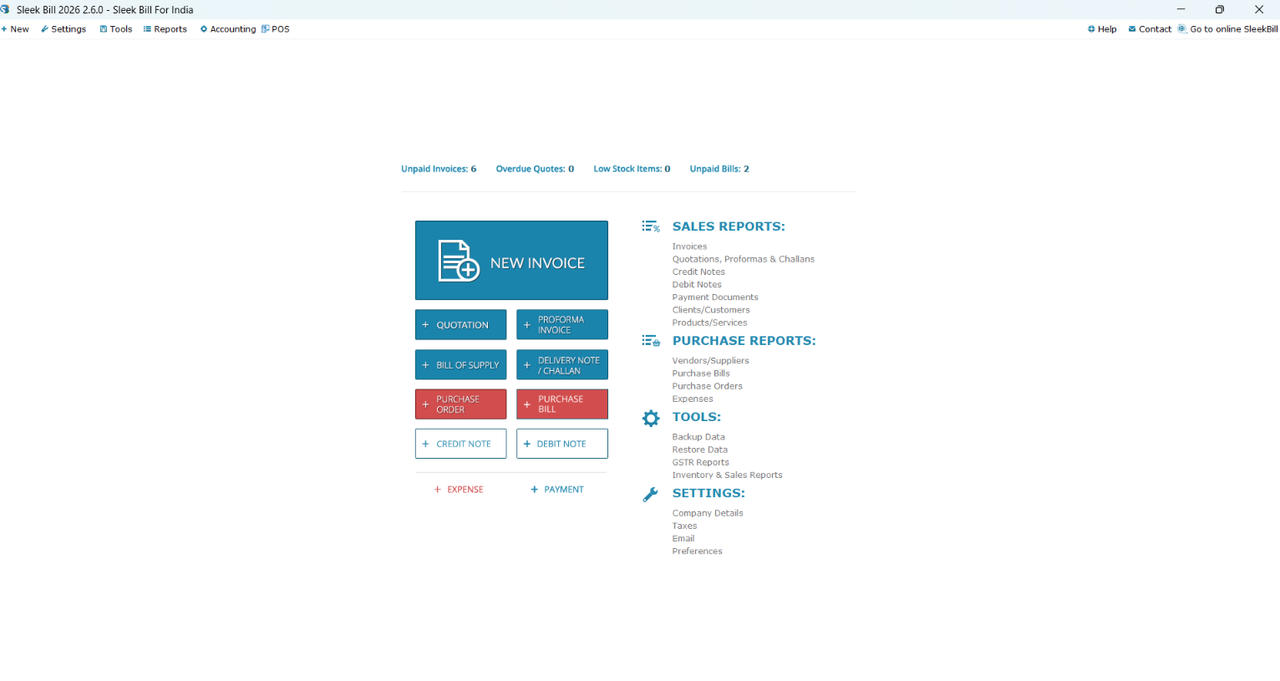
First, open Sleek Bill Desktop on your PC.
After launching the software, you will see the Dashboard.
Step 2: Open Settings
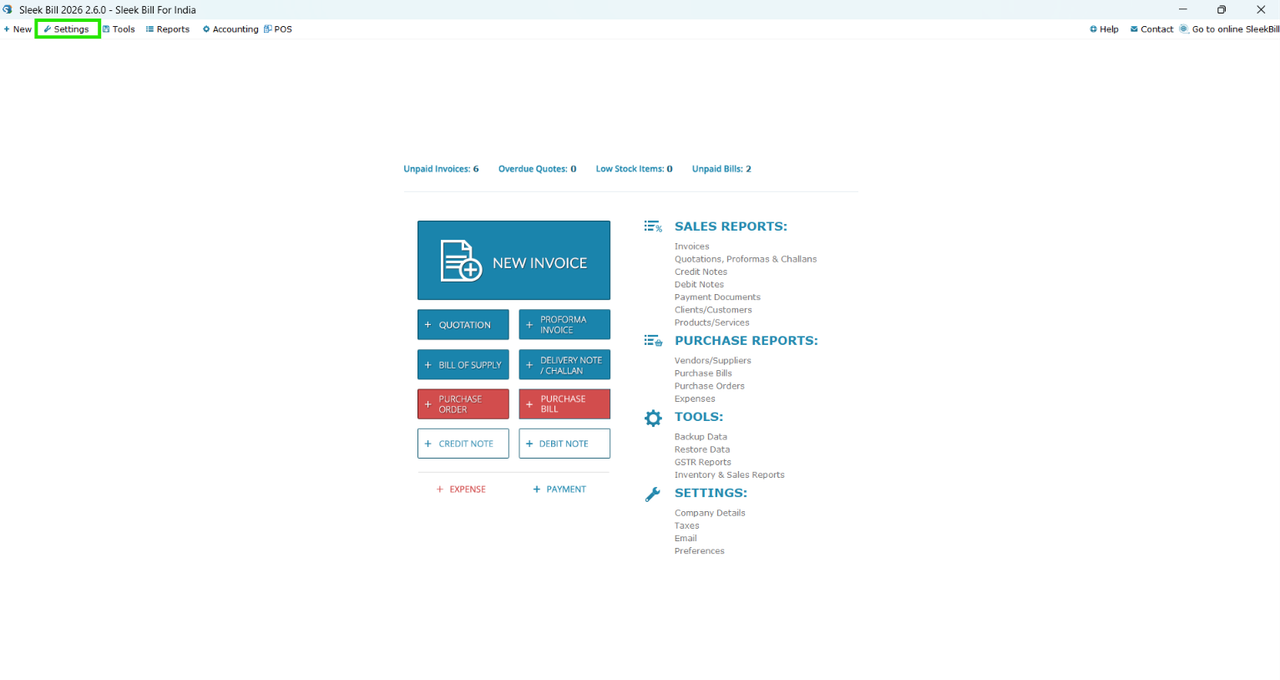
From the Dashboard, look at the top-right corner of the screen.
Click on the Settings option to open the settings menu.
Step 3: Select Company Bank Details
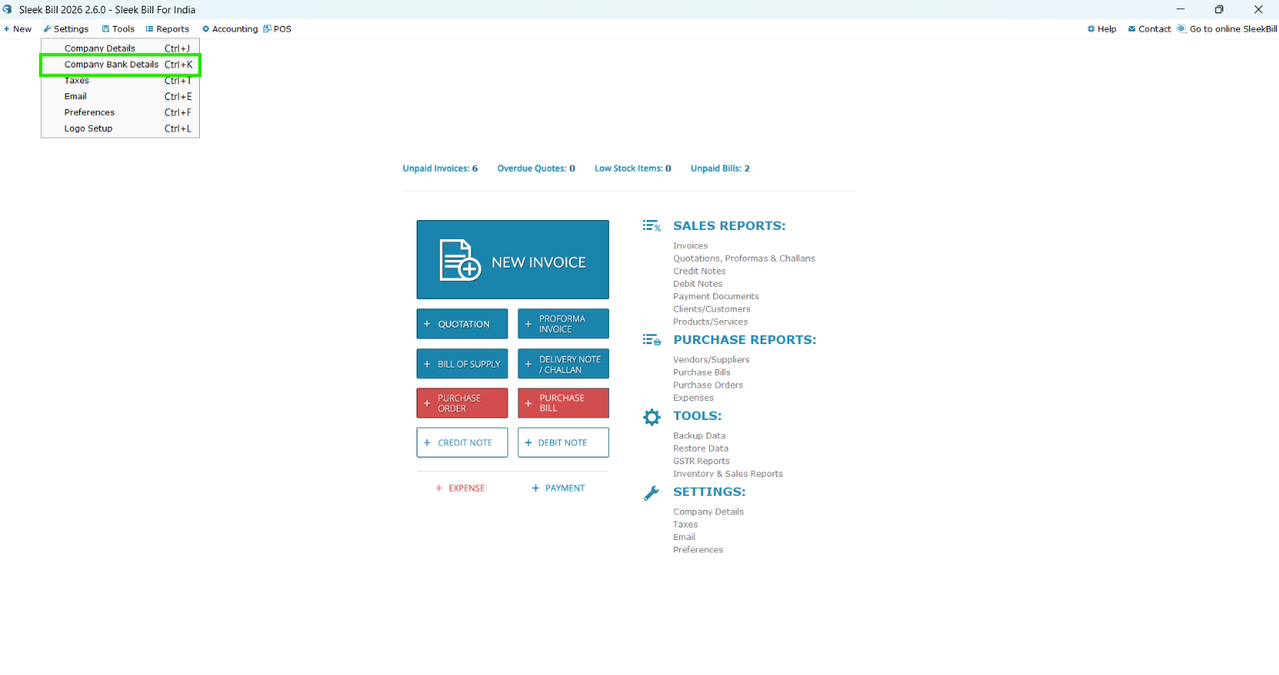
In the Settings section, click on Company Bank Details.
A popup window will appear where you can enter and manage your company's bank account information.
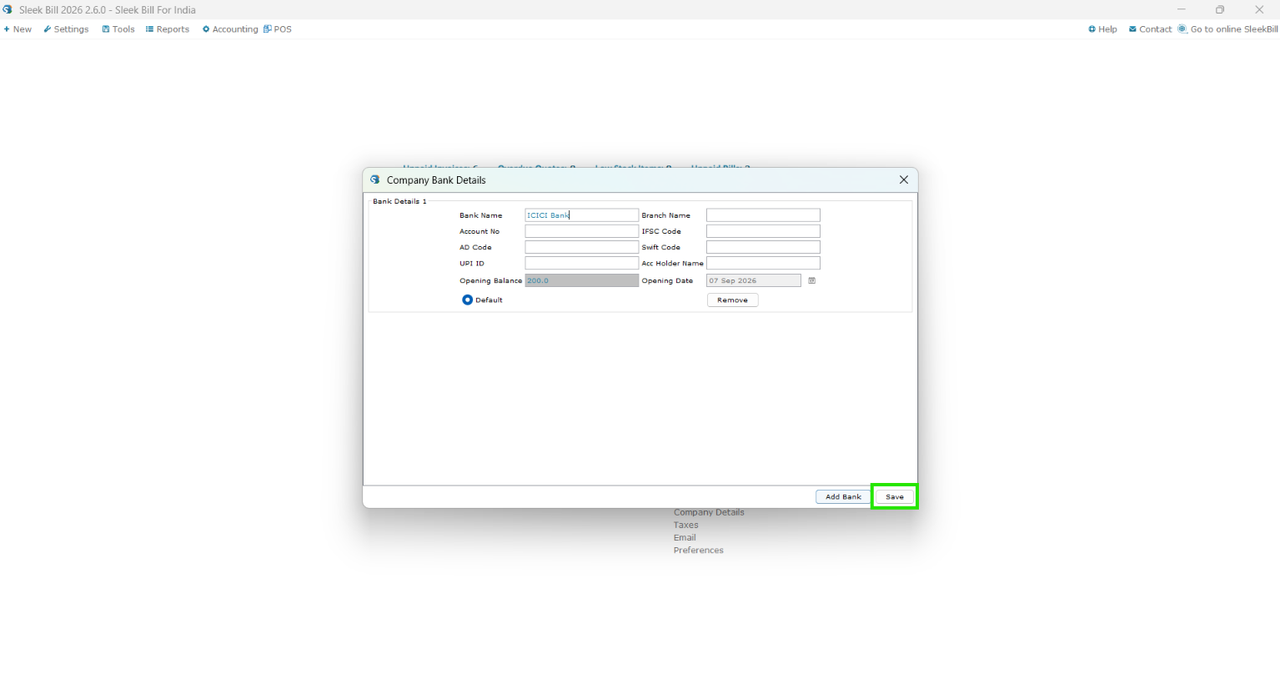
Step 4: Enter the Opening Balance
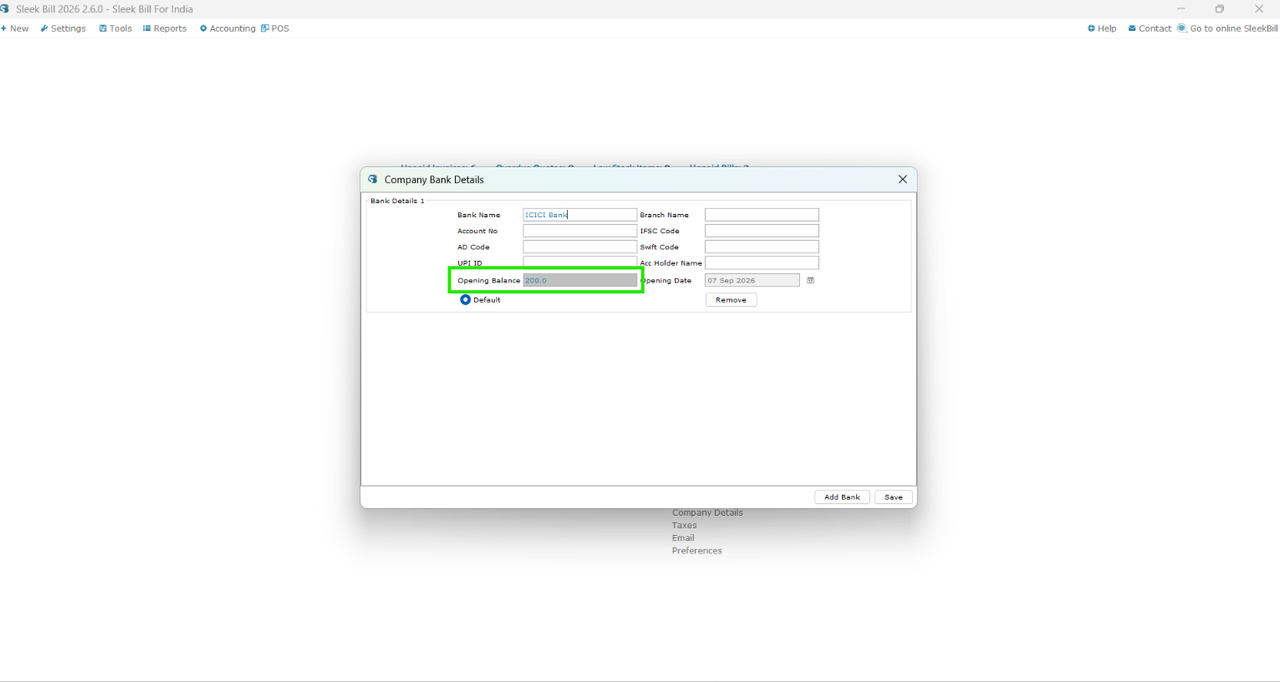
At the bottom of the Company Bank Details window, you will find the Opening Balance field.Enter the current opening balance of the bank account in this field.
For example, if the bank account has an opening balance of ₹50,000, enter ₹50,000 in the Opening Balance field.
Step 5: Save
After entering the balance and completing the bank details, click Save.
Your bank account details and opening balance will now be saved in Sleek Bill Desktop.
Step 6: Open the Bank Book
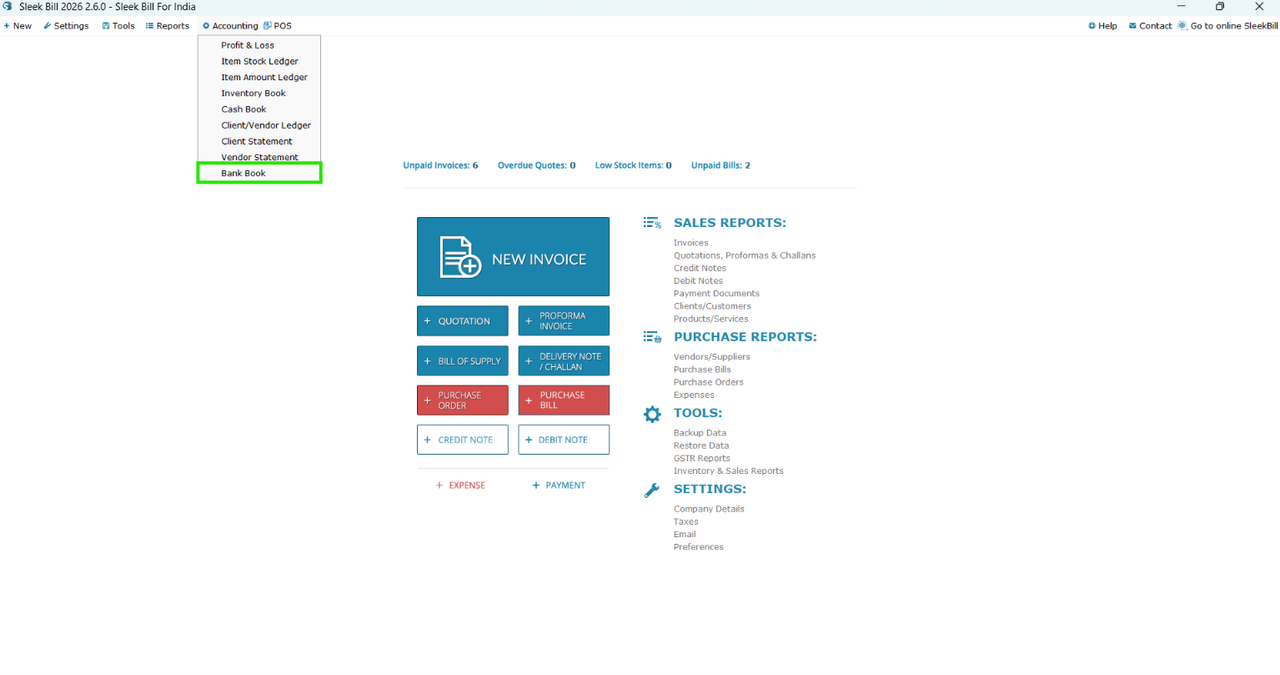
Now go to the Accounting option available at the top of the software.
Click on Accounting and select Bank Book from the drop-down menu.
A Bank Book popup window will appear.
Step 7: Check the Opening Balance
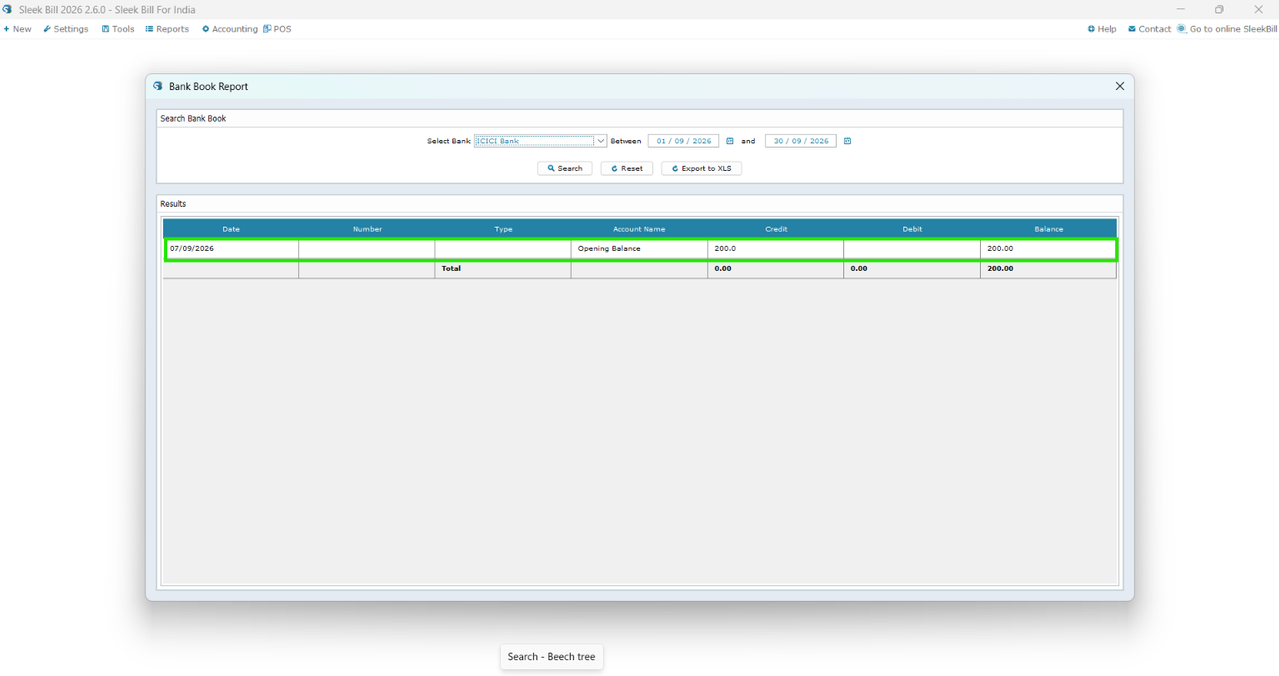
In the Bank Book window, you can view the bank account information.
The opening balance you entered earlier will be displayed in the Account Name column.
This allows you to verify that your bank opening balance has been successfully added to Sleek Bill Desktop.
Why Is the Bank Opening Balance Important?
Entering the correct opening balance helps maintain accurate accounting records. It provides a starting point for tracking your bank transactions and makes it easier to monitor your business's financial position.
With the opening balance recorded correctly, you can continue maintaining your bank book and tracking subsequent transactions more efficiently.
Conclusion
Adding a bank opening balance in Sleek Bill Desktop is a simple process. You just need to open Settings → Company Bank Details, enter your bank information and opening balance, save the details, and then check the balance under Accounting → Bank Book.
Following these steps helps you keep your bank records organized and ensures that your accounting information starts with the correct balance.
Was this article helpful?