How to Check Vendor Outstanding Payment in Sleek Bill Online
Managing outstanding payments to your vendors is essential for maintaining strong supplier relationships and ensuring smooth business operations. Keeping track of unpaid purchase bills helps you avoid missed due dates, plan your cash flow, and maintain accurate financial records.
With Sleek Bill Online, you can easily view the Vendor Outstanding Payment Report to monitor pending payments, vendor balances, and outstanding purchase bills in one place.
In this guide, you'll learn how to check vendor outstanding payments in Sleek Bill Online.
What is the Vendor Outstanding Payment Report?
The Vendor Outstanding Payment Report provides a complete summary of all unpaid or partially paid purchase bills for your vendors. It helps you track how much your business owes to each supplier and ensures timely payments.
The report enables you to:
- Monitor pending vendor payments
- Track supplier balances
- Plan business cash flow
- Avoid late payment penalties
- Maintain accurate purchase records
Step 1: Login to Sleek Bill Online
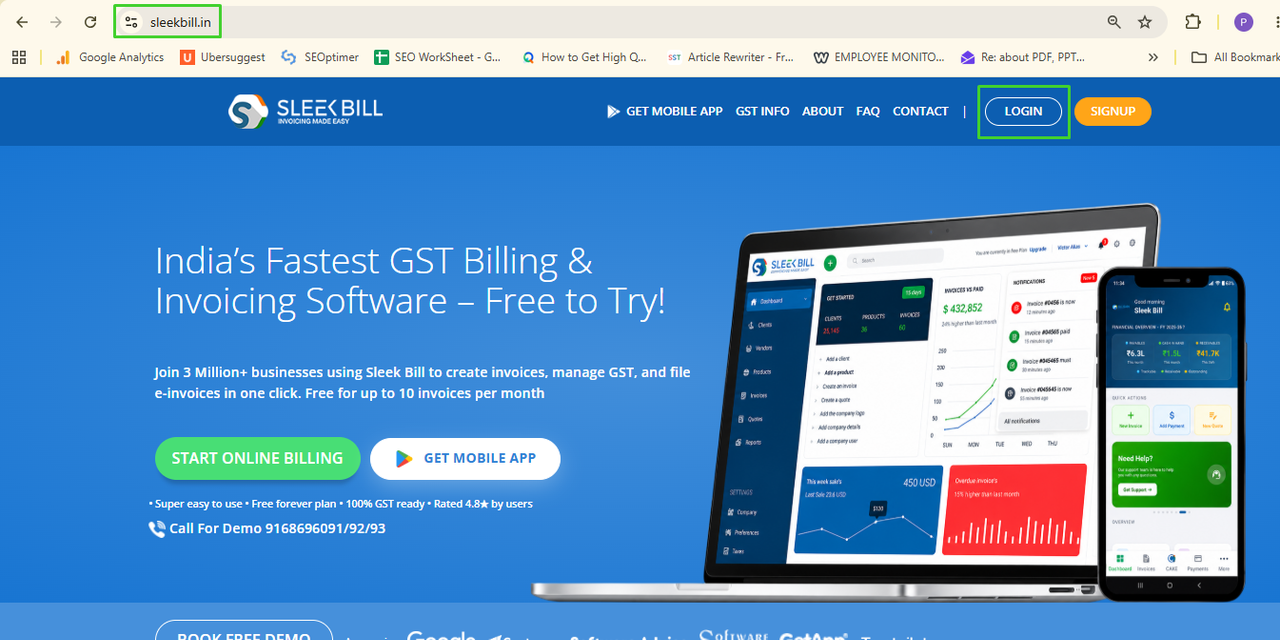
Open your browser and log in to your Sleek Bill Online account.
Step 2: Open Reports
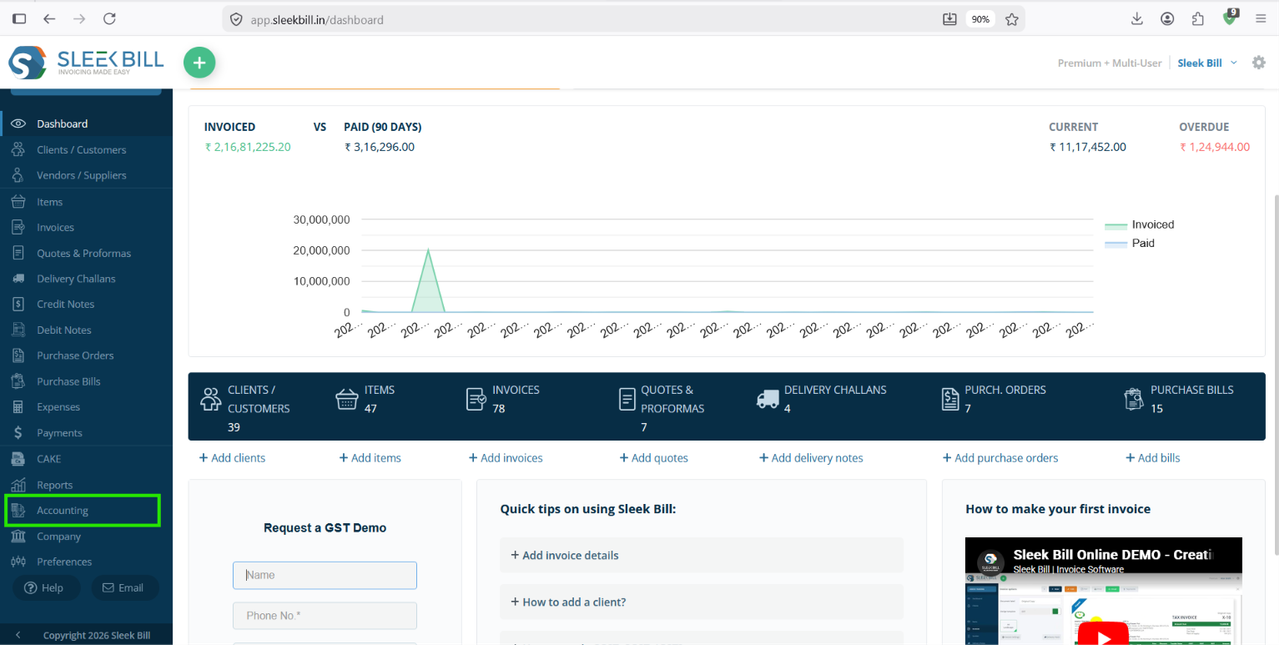
From the left-side menu, click: Accounting
Step 3: Select Client Outstanding Payment Report
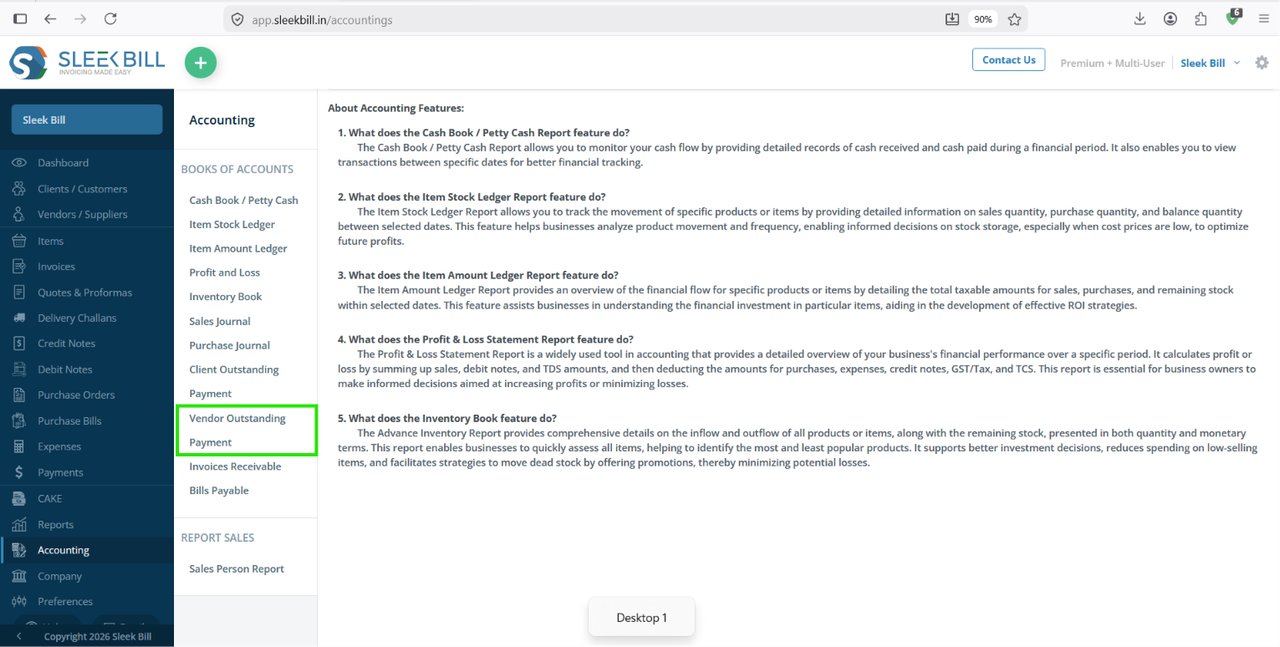
Under the Accounting section, click: Client Outstanding Payment The report page will open.
Step 4: Review Outstanding Payments
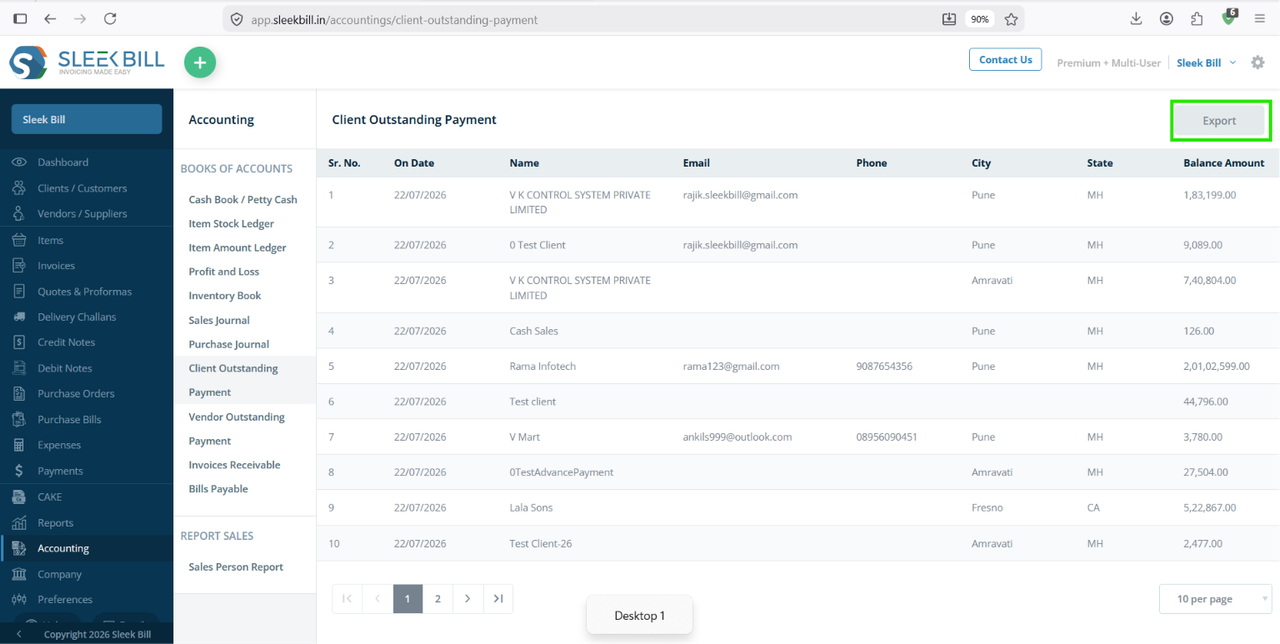
The report displays customer-wise outstanding details, including:
- On Date : This shows the date on which the outstanding balance is calculated. It helps you understand the client's pending balance as of that specific date.
- Client Name : Displays the name of the customer with an outstanding balance. This makes it easy to identify which client has pending payments.
- Email : Shows the client's registered email address. You can use it to send payment reminders, invoices, or account statements directly.
- Phone: Displays the client's contact number for quick communication. It allows you to follow up on pending payments through calls or messages.
- City: Indicates the city where the client is located. This helps you organize and filter outstanding payments based on geographical location.
- State: Displays the client's state or region. It is useful for managing customer records and analyzing outstanding payments across different states.
- Balance: Shows the total amount that is still unpaid by the client. This helps you prioritize payment collections and monitor your business's accounts receivable effectively.
You can quickly identify overdue invoices and pending payments from each client.
Step 6: Export or Print the Report
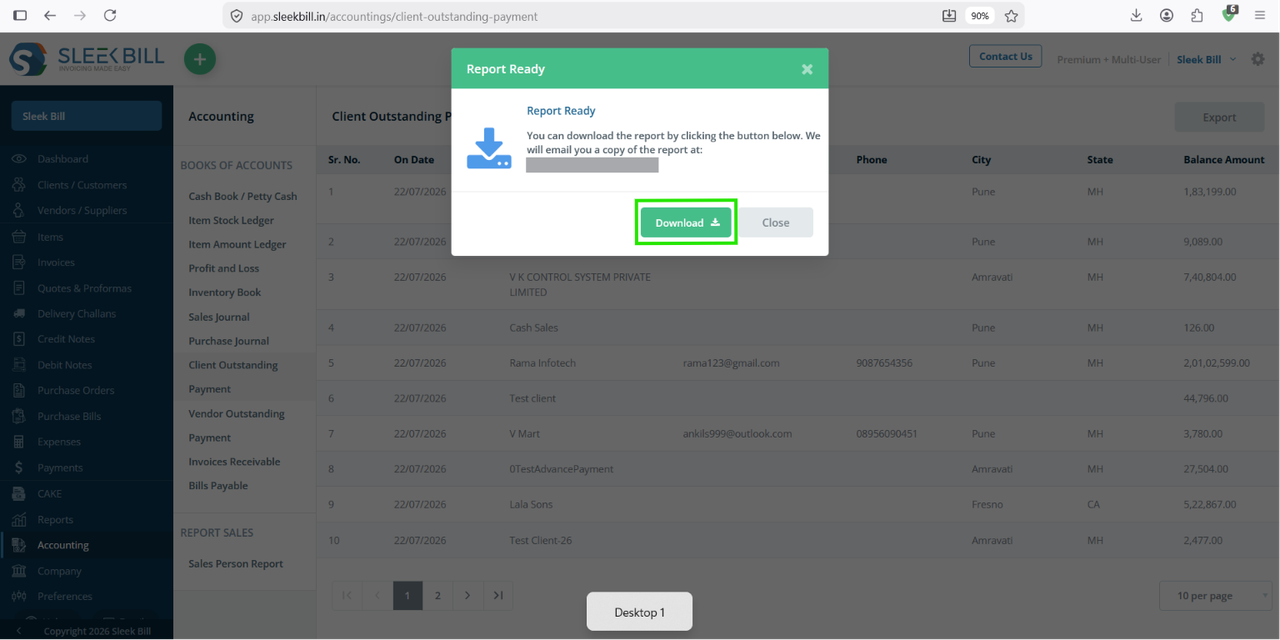
If required, you can click on export button to export the report in excel sheet.
Step 6: Download the Report
You can click on download button to export the report in excel sheet.
Benefits of Checking Vendor Outstanding Payments
The Vendor Outstanding Payment Report helps you:
- Track unpaid purchase bills
- Monitor vendor-wise outstanding balances
- Improve cash flow planning
- Avoid delayed payments
- Maintain healthy supplier relationships
- Simplify accounts payable management
- Prepare accurate financial reports
Was this article helpful?