How to Share Invoices via WhatsApp by Sleek Bill Desktop Software
It becomes very easy to send your customers invoices when you have the option to send them through WhatsApp. You will find the option to send invoices and other documents to customers using Sleek Bill Desktop Billing Software.
Why Should You Share Invoices Via WhatsApp?
Sending documents to customers through WhatsApp is a very easy process. Once you create an invoice on Sleek Bill, you can send the invoices via WhatsApp. Your customers get a link through WhatsApp and can view it and also download it as a PDF.
Before You Start
Before sharing a document:
- Make sure WhatsApp is open on your PC.
- Add the customer's correct WhatsApp number in Sleek Bill.
Steps to Share an Invoice on WhatsApp
1. Open Sleek Bill Desktop Software and
Launch Sleek Bill Desktop Software on your computer.
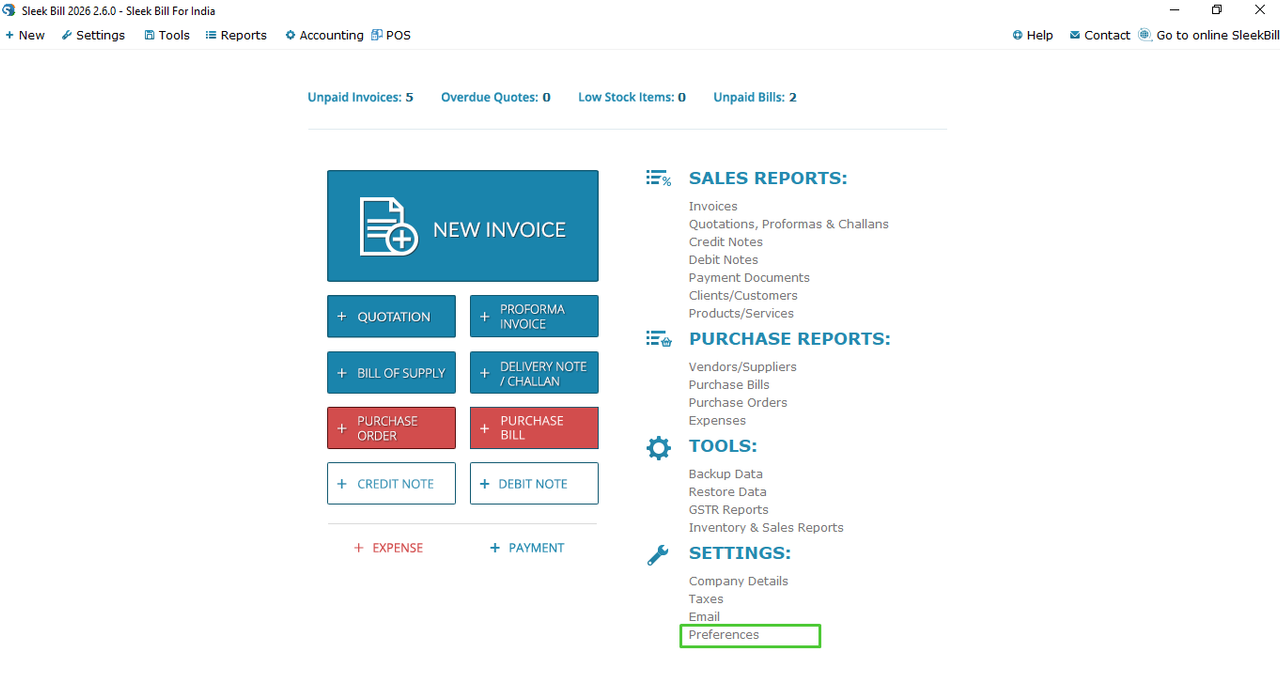
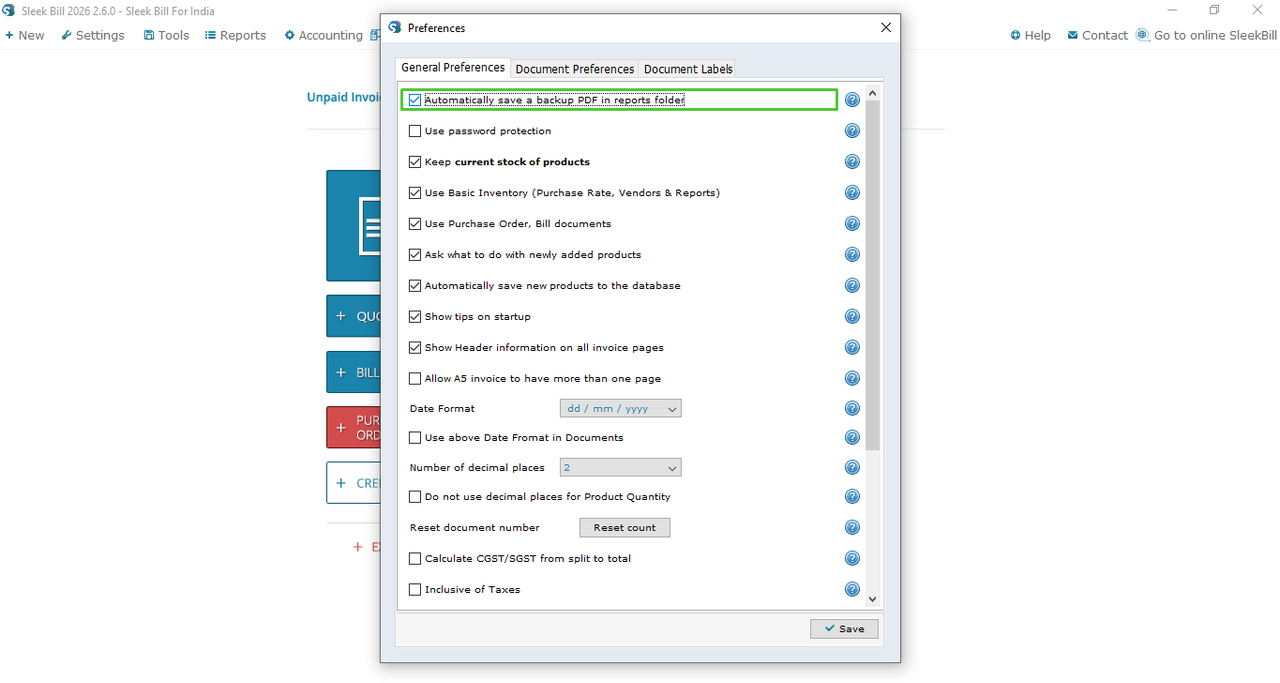
3. Open Clients/Customers or Vendors
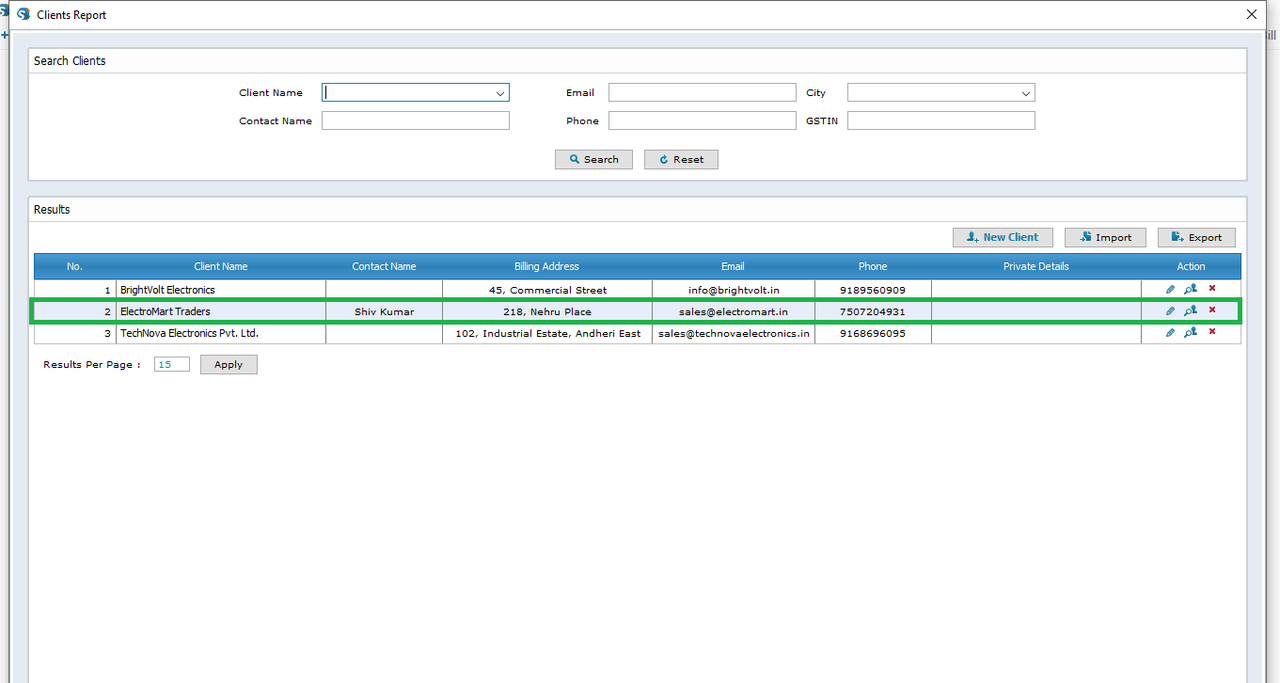
Click the Client/Customer or Vendors tab from the software.
4. Add or edit a client
Click Add New Client to create a new customer, or select an existing client to edit their details.
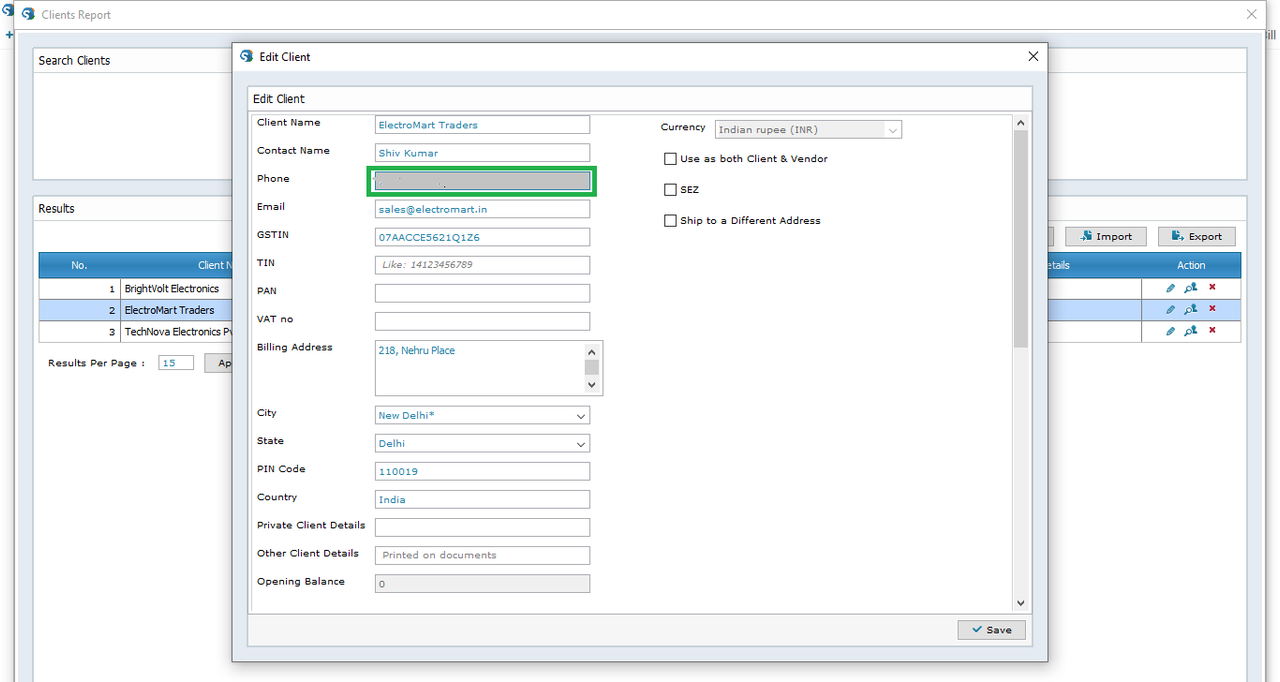
5. Enter the WhatsApp Number
Enter the customer's WhatsApp number in the WhatsApp Number field and click Save.
6. Open the Documents
Open any document section where you want to share a document, such as:
• Invoices
• Quotes & Proforma Invoices
• Credit Note
• Debit Note
For this example, open Invoices.
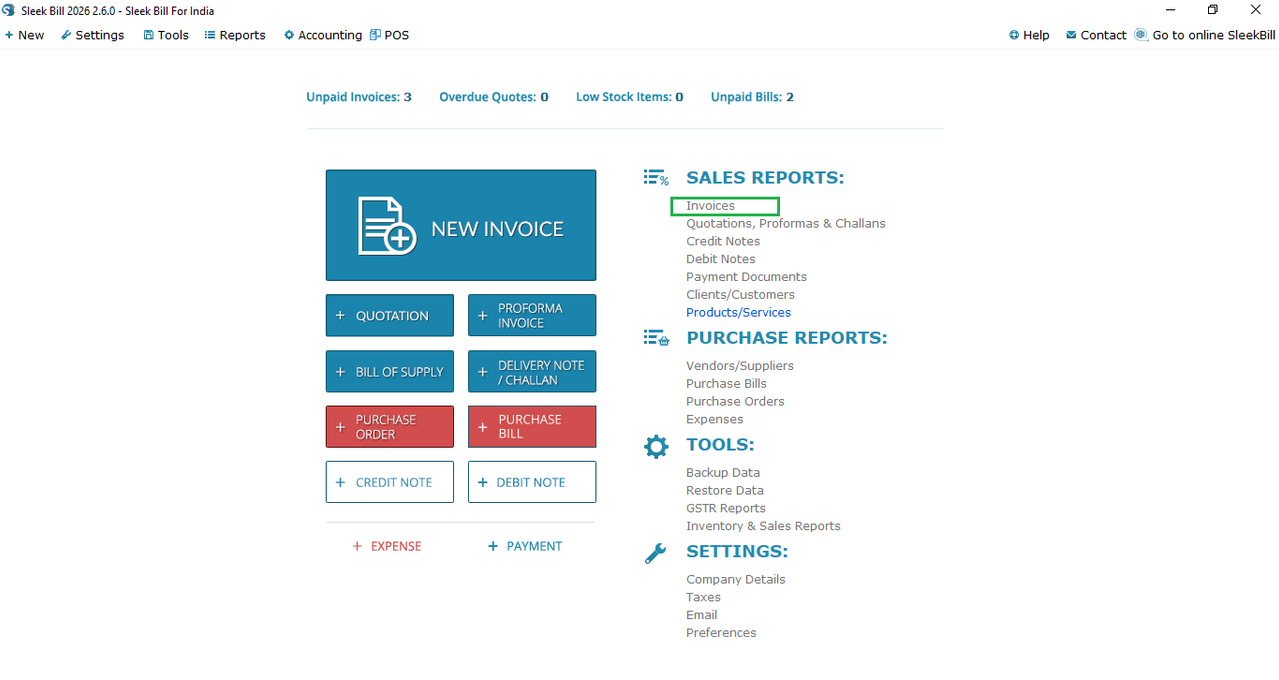
7. Create an Invoice
Create a new invoice, select the client and products, and click Save and Preview.
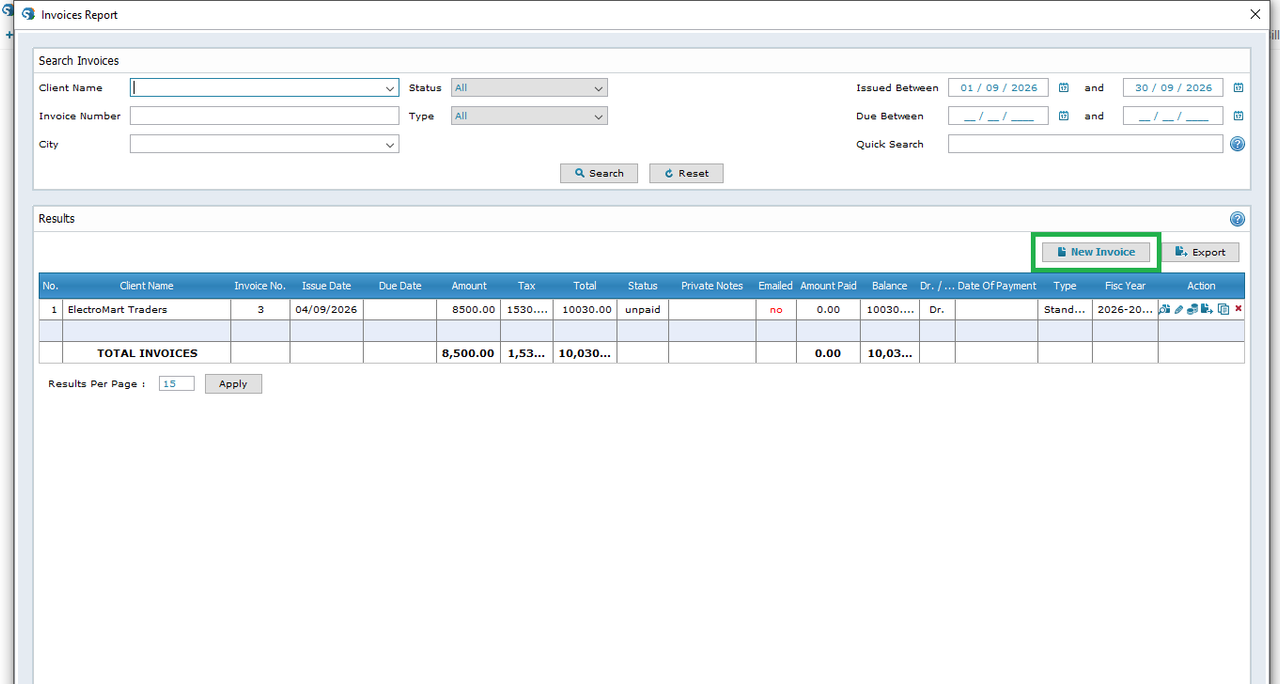
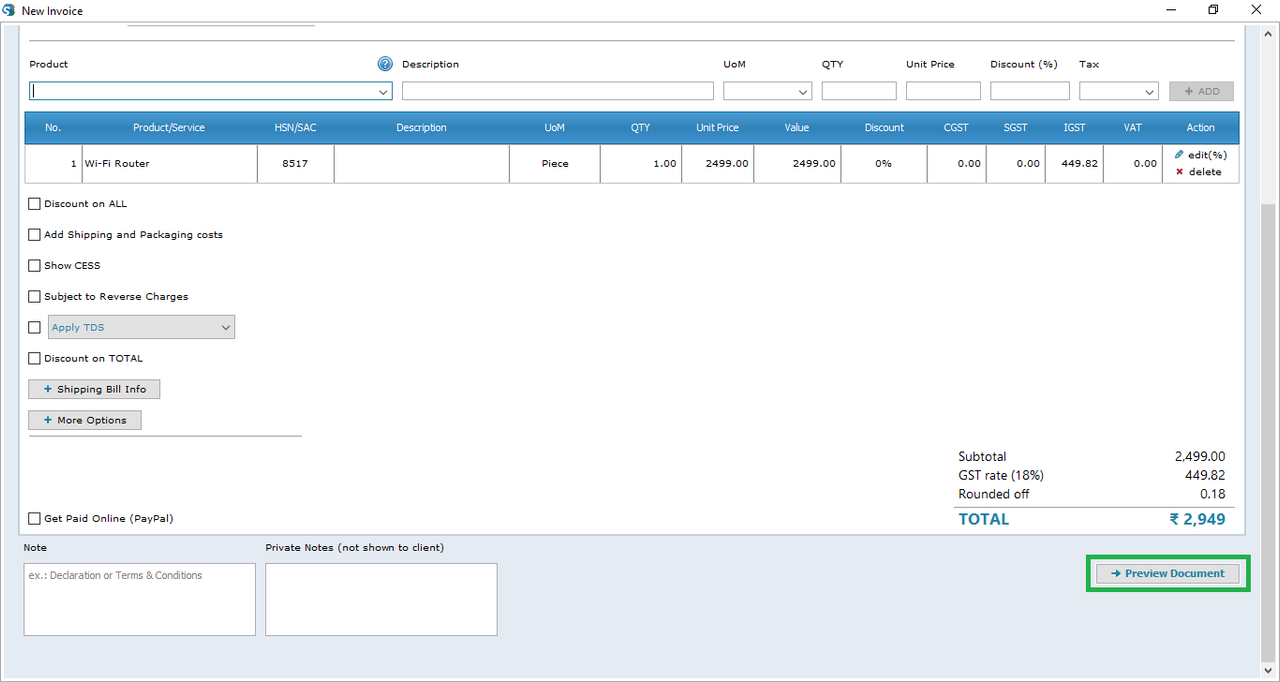
8. Save the Document
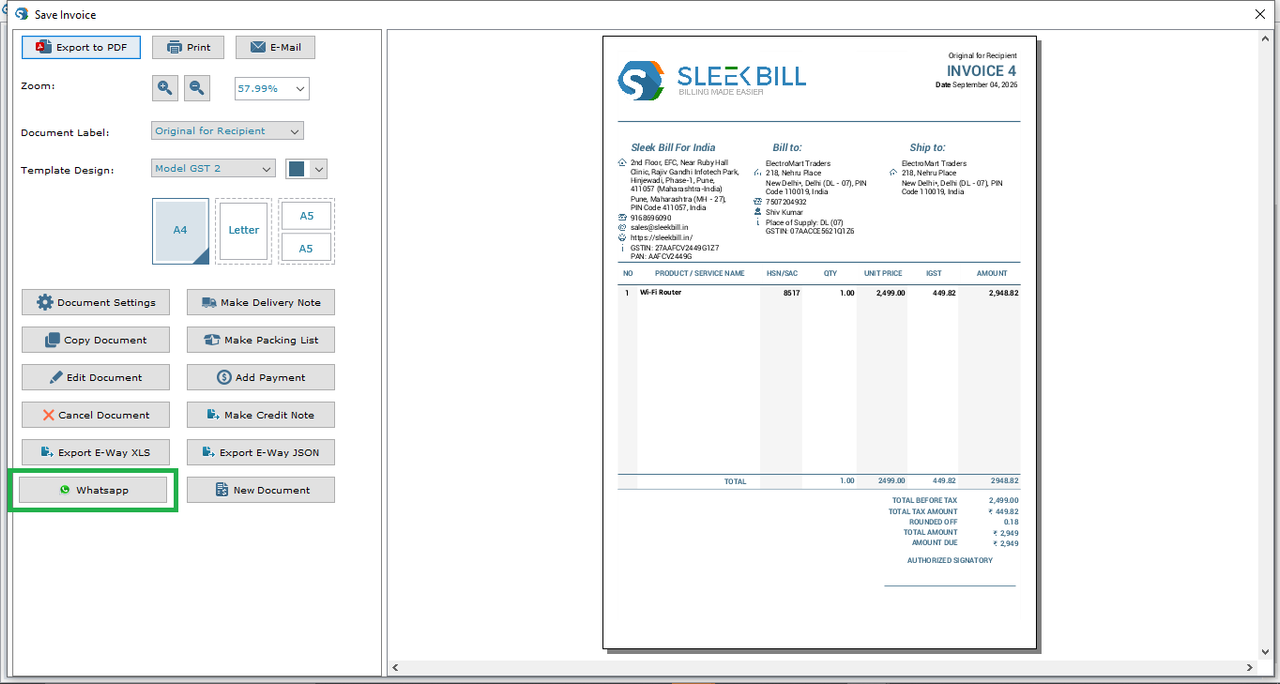
The invoice will open on your screen. Click Save Document.
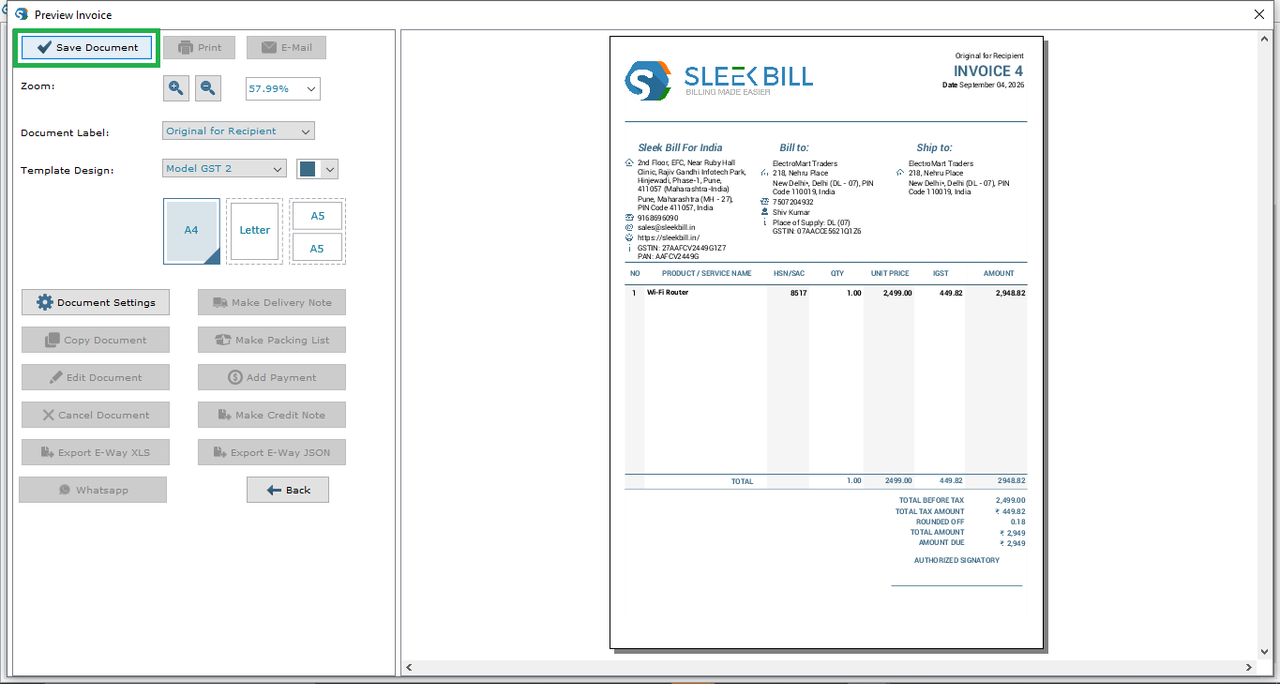
9. Share the Invoice on WhatsApp
Click the WhatsApp button to share the invoice or other documents with your customer.
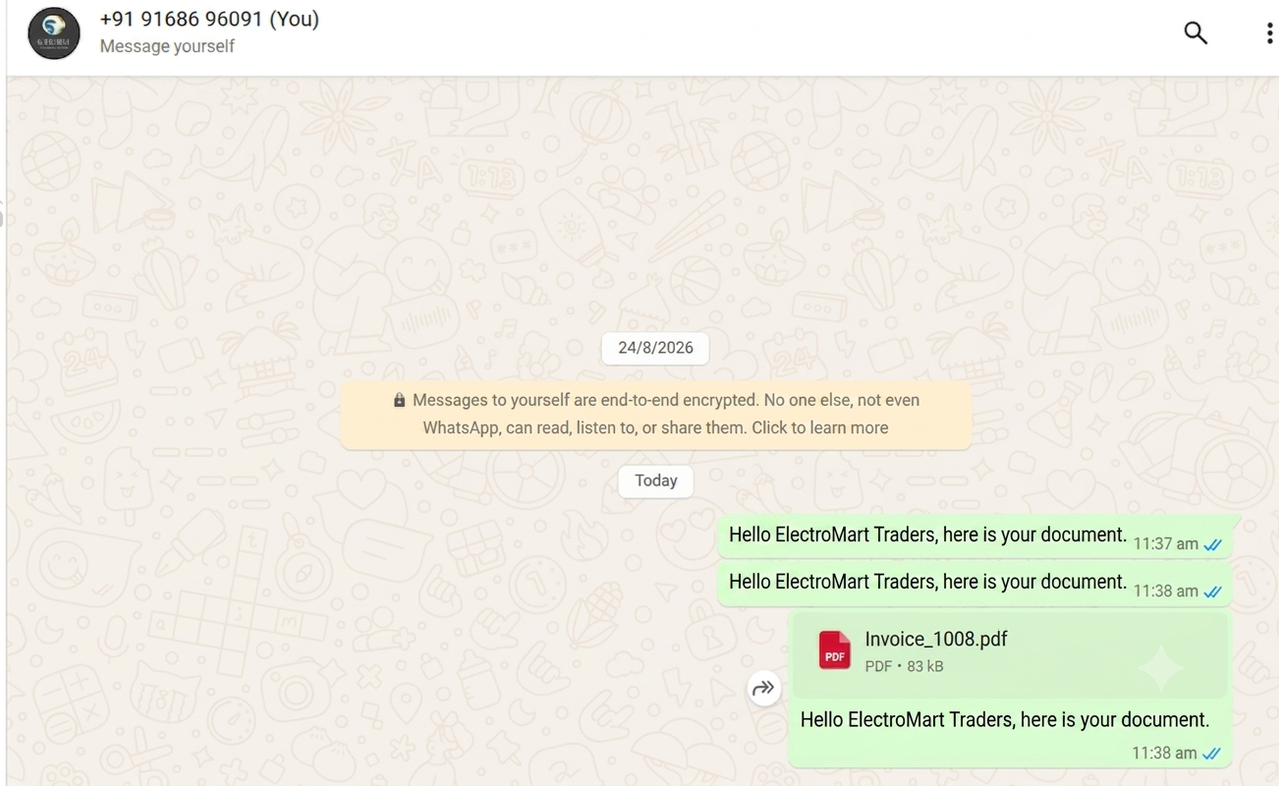
when click on WhatsApp button WhatsApp web window will open and document is sent.
Once the document is successfully shared, you will see the message:
“The document has been shared on WhatsApp.”
10. Customer Opens the Invoice
The recipient will receive a message on WhatsApp containing a PDF document. They can open the link and export the invoice as a PDF or print it when required.
Conclusion
It is easier
and faster to share invoices using WhatsApp. All you need is to use the Sleek
Bill Desktop Software to make your invoice, save it, and then send it directly
to the customer without having to download and attach the PDF yourself.
Create, save,
and share your invoices with ease using Sleek Bill.
Was this article helpful?