🧾 Billing & Invoicing
How to Show Currency Symbol Instead of Currency Code in Sleek Bill?
Hello Sleek Bill users! Welcome to the Sleek Bill Knowledge Hub.
Today, we’ll learn how to display currency symbols like ₹, $, and € instead of currency codes (INR, USD, and EUR) in your sleek bill documents, such as invoices, quotes, and bills.
Why Use Currency Symbol in Invoices?
Using a currency symbol makes your invoice look more professional and easier to understand.
- Helps clients quickly identify the currency.
- It gives a clean and modern look to your documents
- Improves readability, especially for international clients
- Creates a better impression on customers, for example, ₹500 looks more natural and clearer than INR 500.
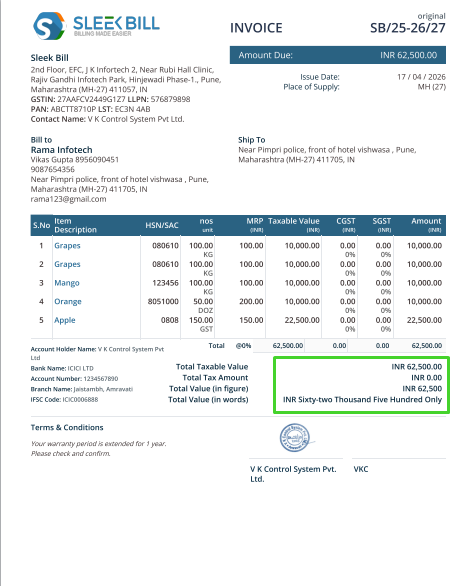
Here is the Invoice showing the currency code. You can change it.
Steps to Show Currency Symbol in Sleek Bill: Changing the currency display in Sleek Bill is super simple. Just follow these steps:
Step 1: First, go to the browser and type www.sleekbill.in
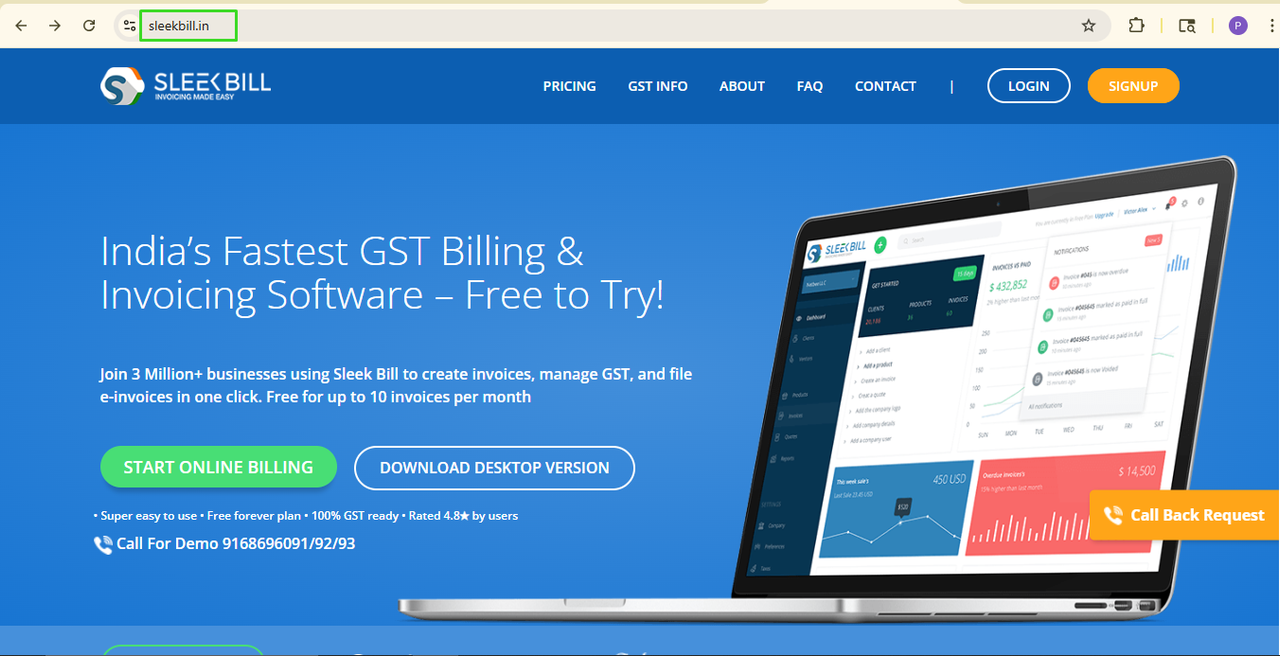
Step 2: Open the Sleek Bill site and click on login.
 Step 3: The login screen will open. Enter your Email ID and Password and click on the Sign in button.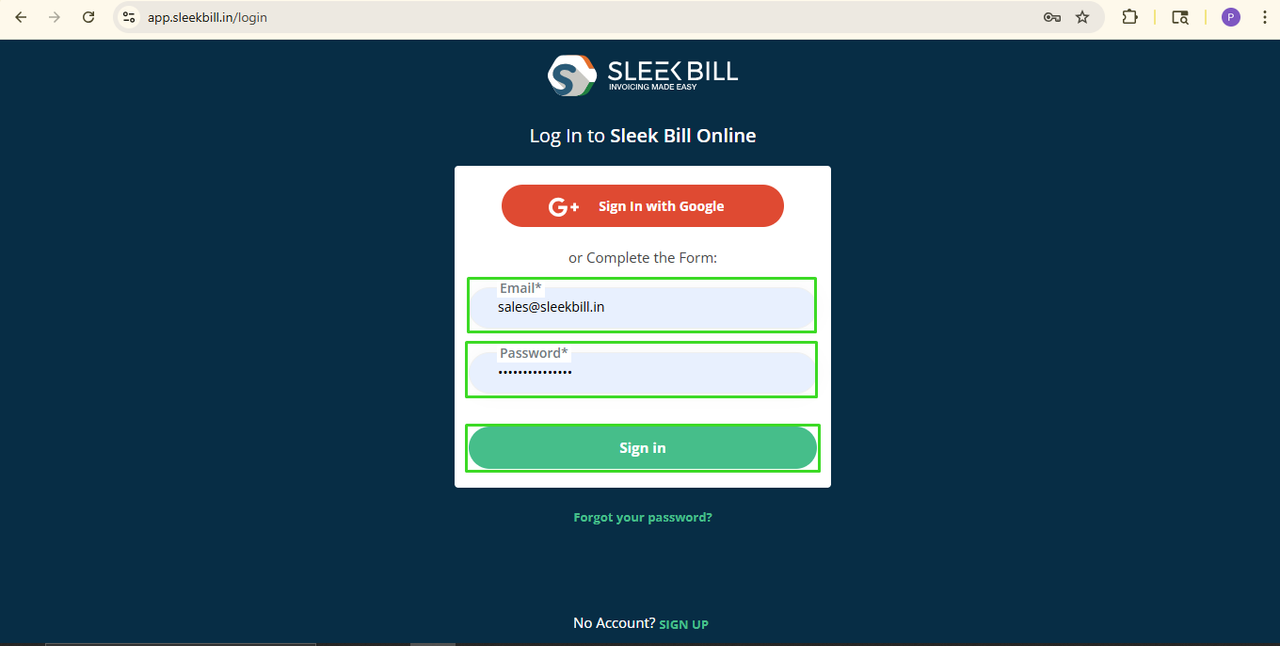
Step 4: Step now you are on the dashboard, simple! Now, scroll down and click on the Preferences tab.

Step 5: Here, by default, the general tab is open. Scroll down.
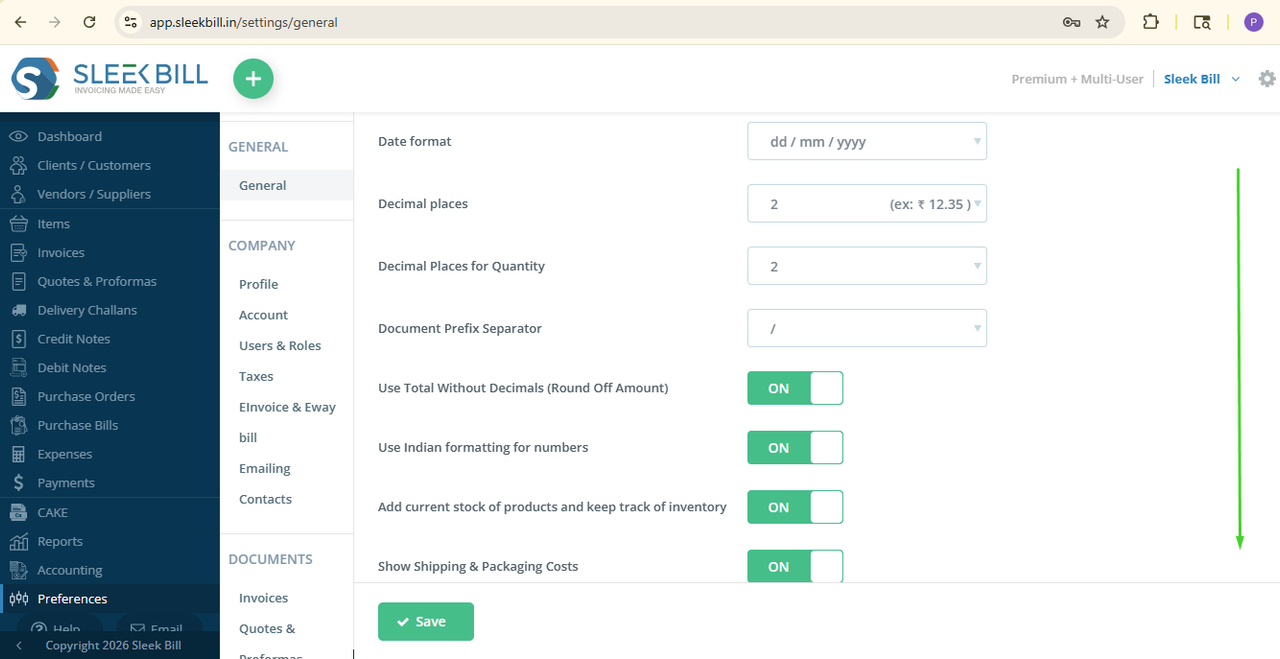 Step 6: You can see the option called Show currency symbol instead of currency code in the preview. Turn on the button in front of the Show currency symbol instead of the currency code in preview.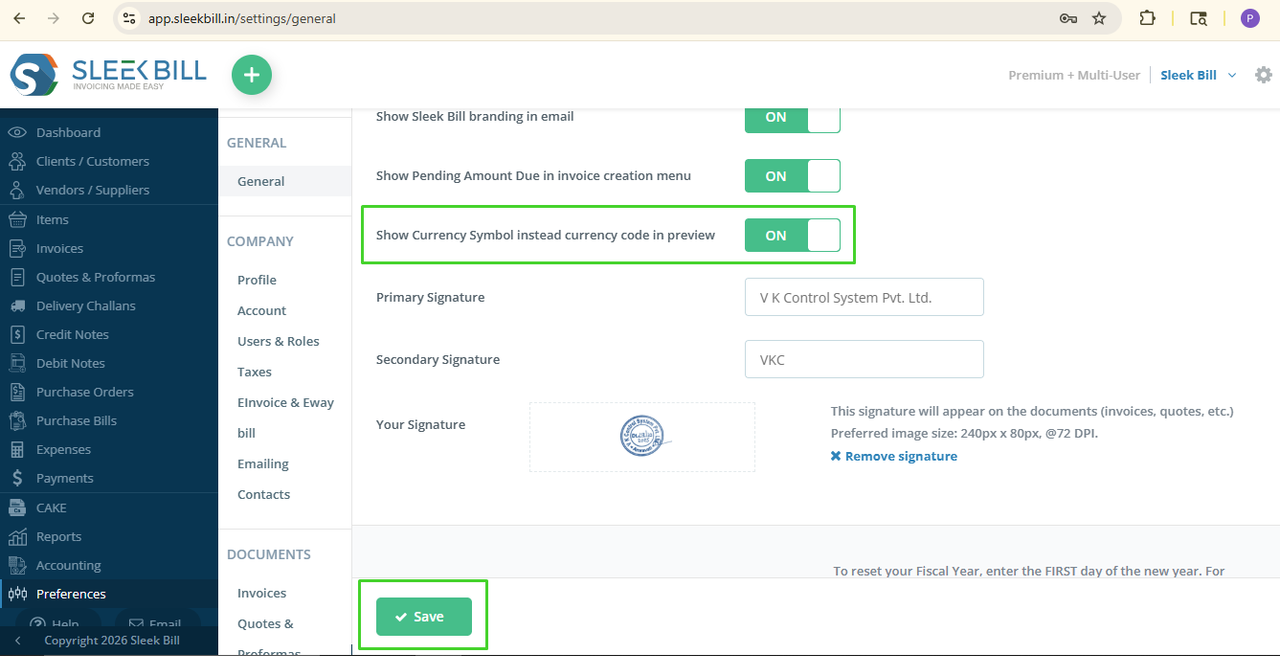
Step 6: Click on Save, and that’s it!
What Happens Next?
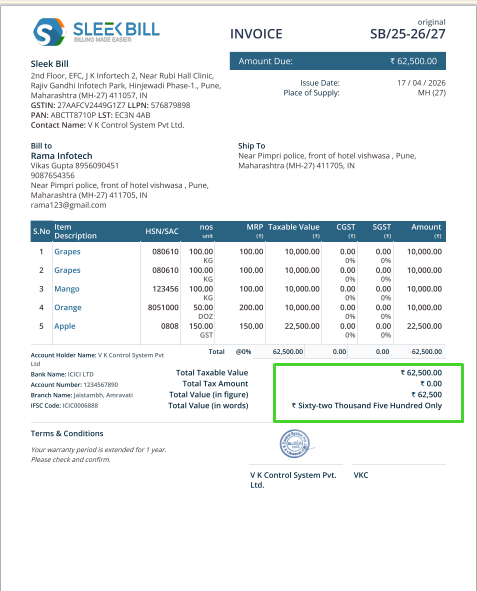
From now on, whenever you create a new invoice or any document, the currency symbol will be displayed on the invoice instead of the code. For example: Instead of USD 100, it will show $100. Instead of INR 500, it will show ₹500.
Conclusion
Showing currency symbols in Sleek Bill is a small step, but it makes a big difference in the presentation of documents. It helps your invoices look more professional, easy to read, and client-friendly. Try it once you’ll notice the improvement instantly!
Was this article helpful?