🧾 Billing & Invoicing
How to Show Total Tax Amount in Purchase Bill in Sleek Bill
Keeping track of the total tax amount in your purchase bills helps you maintain accurate accounting records, verify vendor invoices, and simplify GST reporting. With Sleek Bill, you can easily enable the Total Tax Amount field in your Purchase Bill format.
Follow the steps below to display the total tax amount in your purchase bills.
Steps to Show Total Tax Amount in Purchase Bill
Step 1 : Open your preferred web browser and visit www.sleekbill.in Click on the Login button available at the top-right corner of the screen.
.png)
Step 2 : Enter your registered Email ID and Password, then click on Sign In to access your account.
.png)
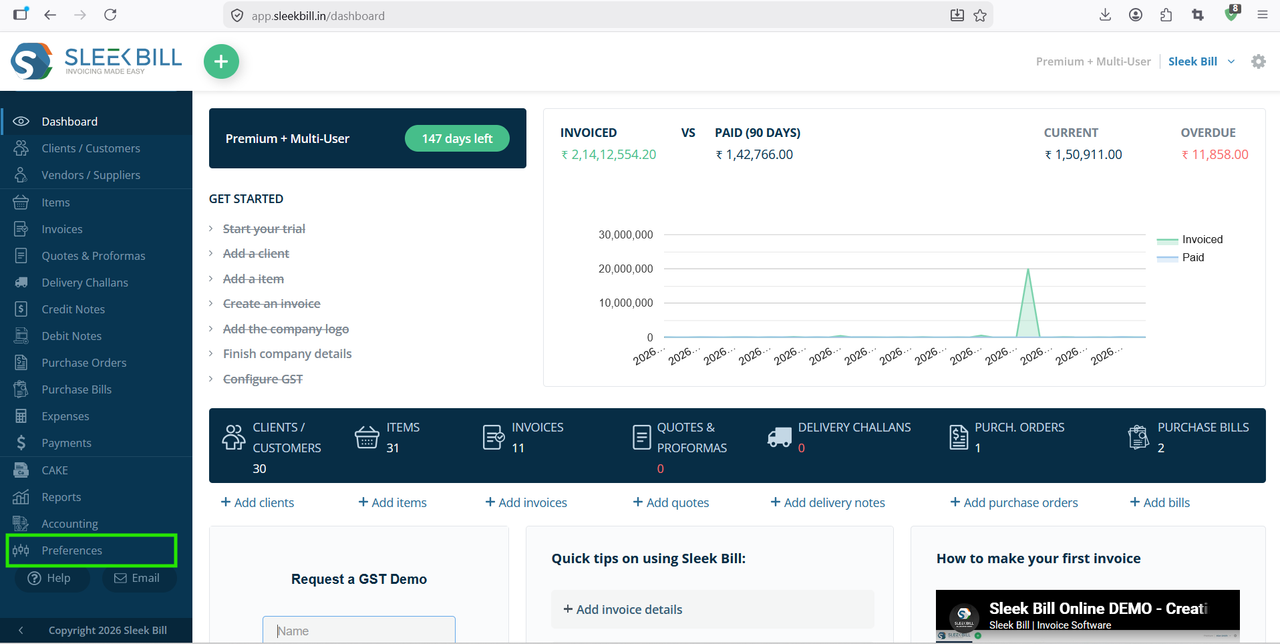
Step 3 : After successful login, you will be redirected to the dashboard. From the left-side navigation menu, click on Preferences.
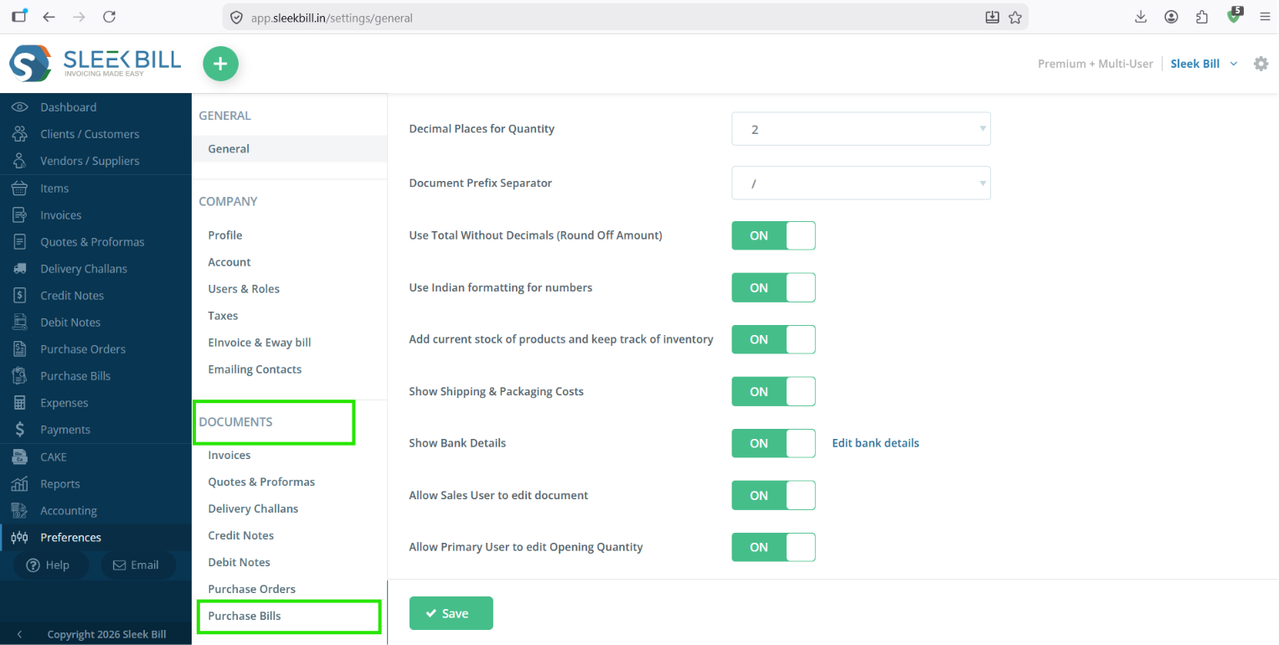
Step 4 : Under the Documents section, select Purchase Bill. This section allows you to customize the appearance and information displayed on your purchase bills.
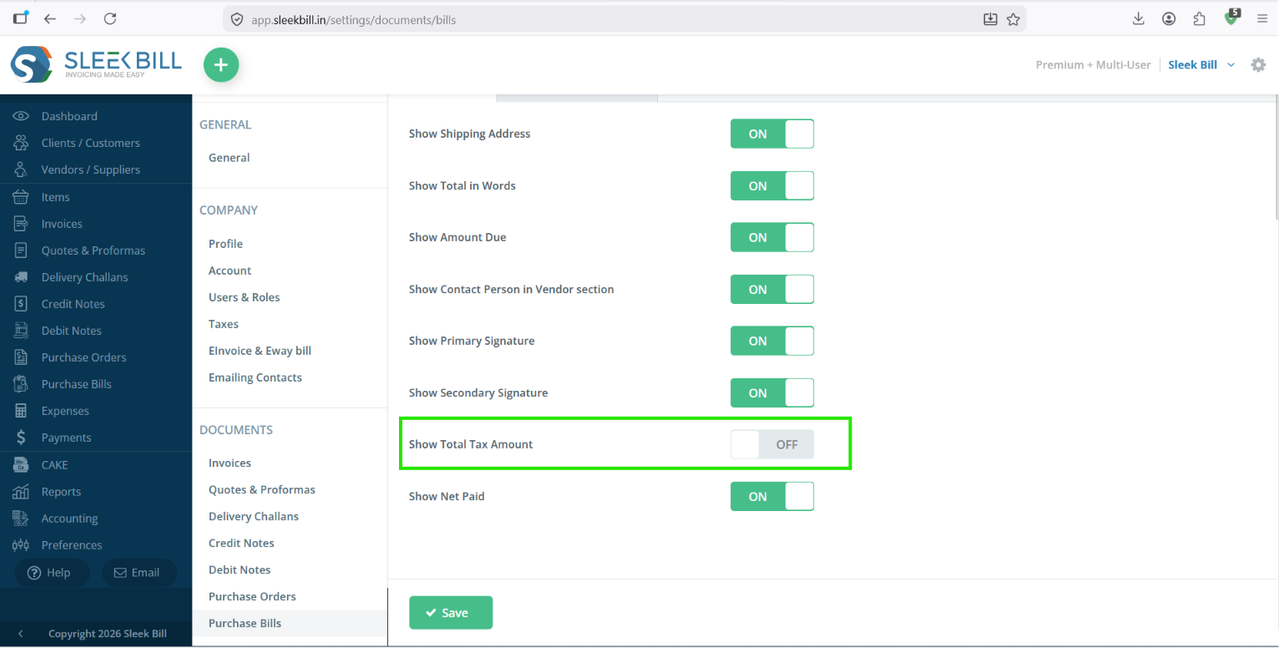
Step 5 : Locate the option Show Total Tax Amount and enable the toggle button.
Step 6 : Click on the Save button to apply the changes to your purchase bill format.
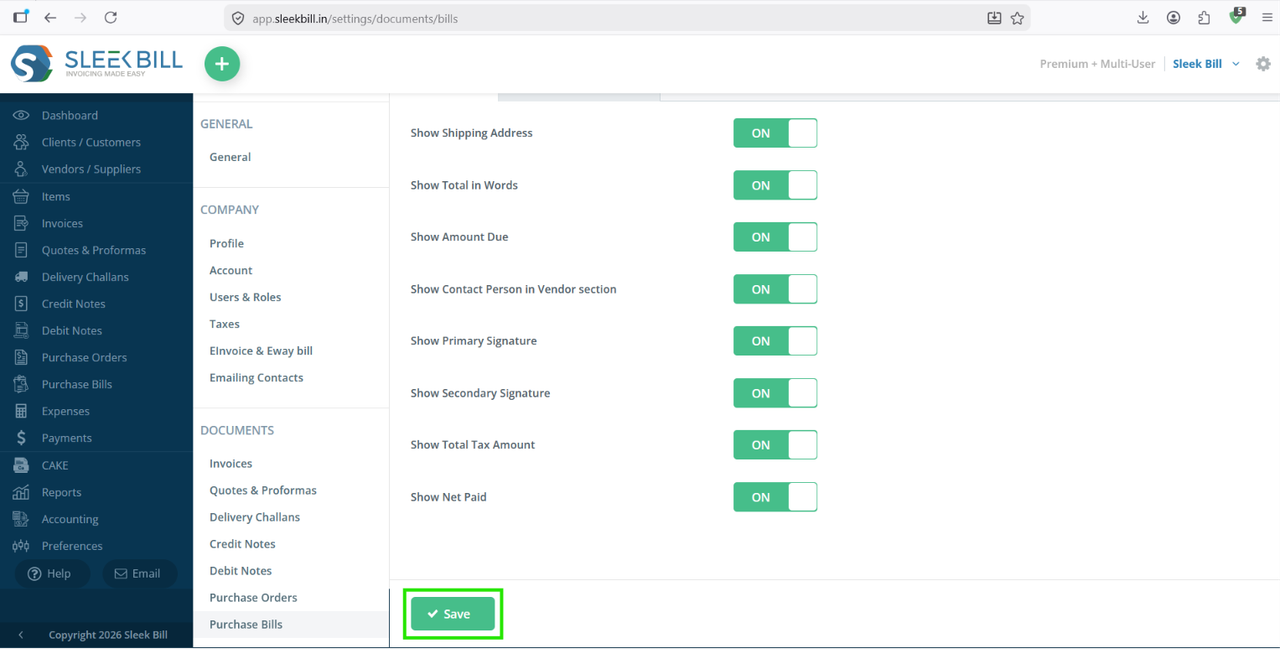
You will now see the Total Tax Amount displayed in the bill summary section.
Benefits of Displaying Total Tax Amount in Purchase Bills
- Get a clear view of the total GST charged by vendors.
- Improve purchase accounting accuracy.
- Simplify tax verification and reconciliation.
- Reduce manual calculations and errors.
- Generate more transparent and professional purchase records.
Conclusion
Enabling the Total Tax Amount in Purchase Bills helps businesses maintain accurate tax records and better financial control. With Sleek Bill's customizable document settings, you can quickly display tax details and ensure your purchase bills contain all the information required for accounting and GST compliance.
Was this article helpful?