Show Primary and Secondary Signature in Purchase Order
A professionally designed purchase order helps businesses maintain clear procurement records and improves communication with vendors and suppliers. Adding authorized signatures to your purchase orders increases authenticity and ensures proper approval before purchases are processed.
With Sleek Bill, you can easily display both Primary and Secondary Signatures in your Purchase Orders. This feature is especially useful for businesses that require approval from multiple authorized personnel such as managers, purchase executives, accountants, or directors.
In this blog, we will guide you through the simple steps to enable Primary and Secondary Signatures in Purchase Orders.
Why Use Signatures in Purchase Orders?
Displaying signatures on purchase orders provides several benefits:
- Adds authenticity to the document
- Improves professionalism
- Helps in approval and verification processes
- Useful for businesses requiring multiple authorizations
- Ensures purchase requests are properly approved
- Builds trust with vendors and suppliers
Steps to Show Primary and Secondary Signature in Purchase Order
Step 1:
Open your preferred web browser and visit www.sleekbill.in. Click on the Login button available at the top-right corner of the screen.

Step 2:
Enter your registered Email ID and Password, then click on Sign In.
.png)
Step 3:
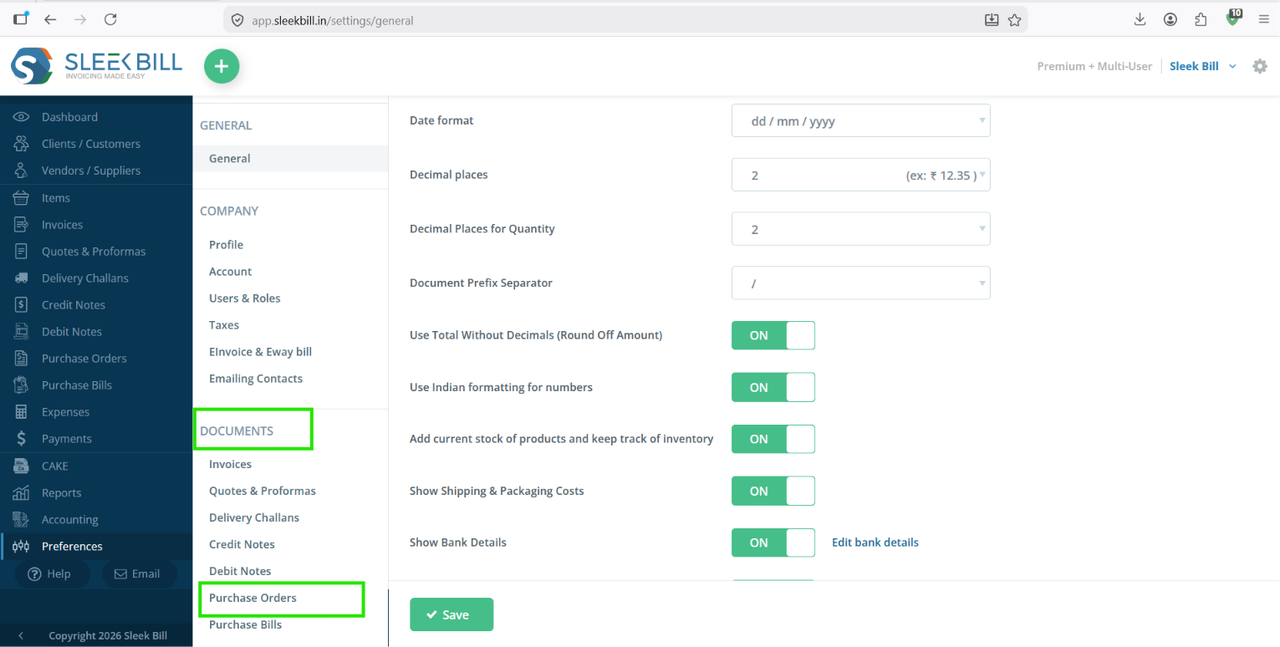
After successful login, you will reach the dashboard. From the left-side menu, click on Preferences. This section allows you to customize different document settings in Sleek Bill.

Step 4:
Inside Preferences, follow this path: Documents → Purchase Order. Here you will find multiple customization options related to purchase orders.
Step 5:
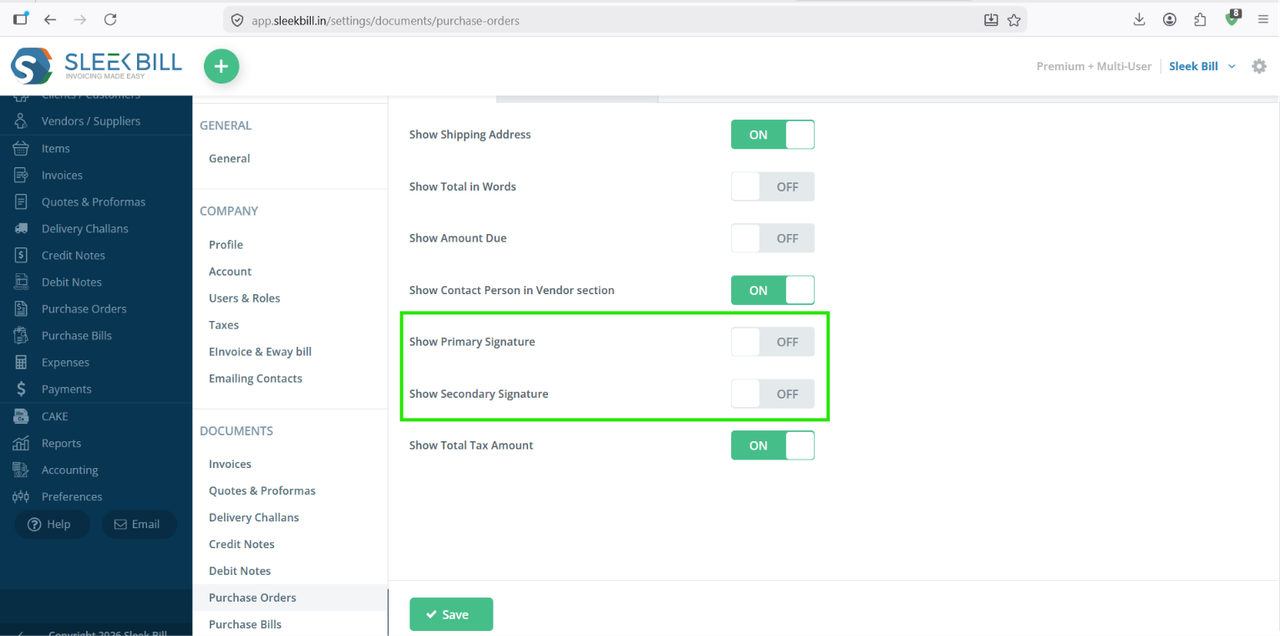
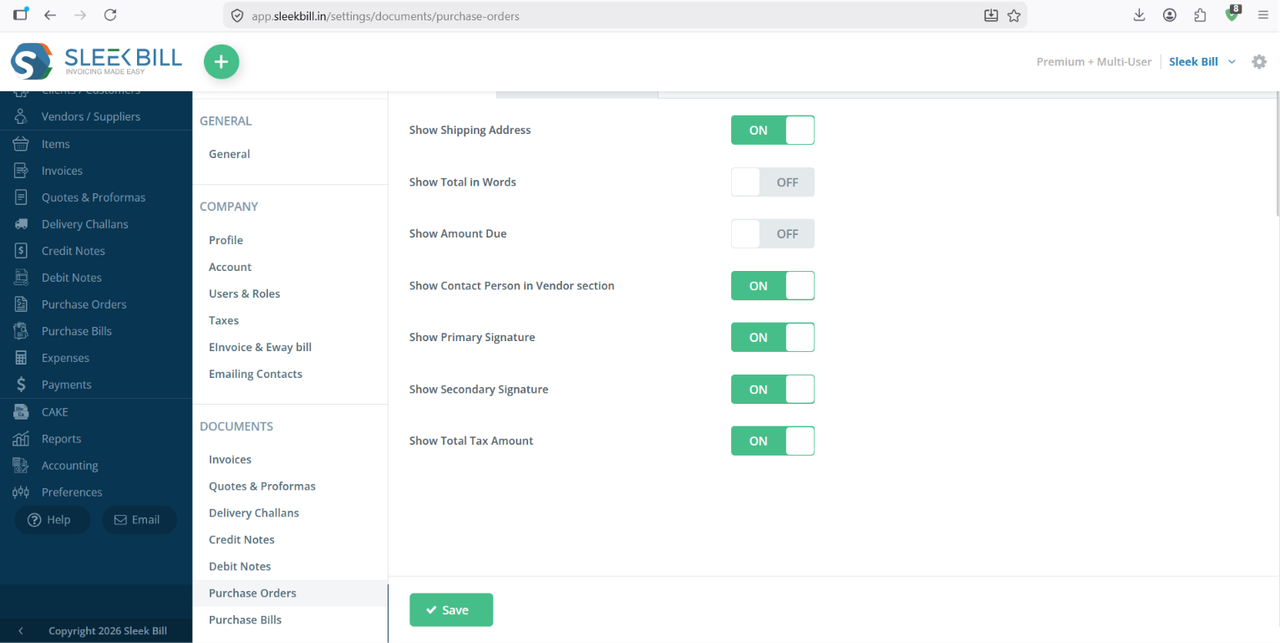
Scroll down to the purchase order section. Then enable the option Show Primary Signature. Now enable the option Show Secondary Signature.
Step 6:
After enabling both signatures, click on the Save button. Your settings will be updated successfully.
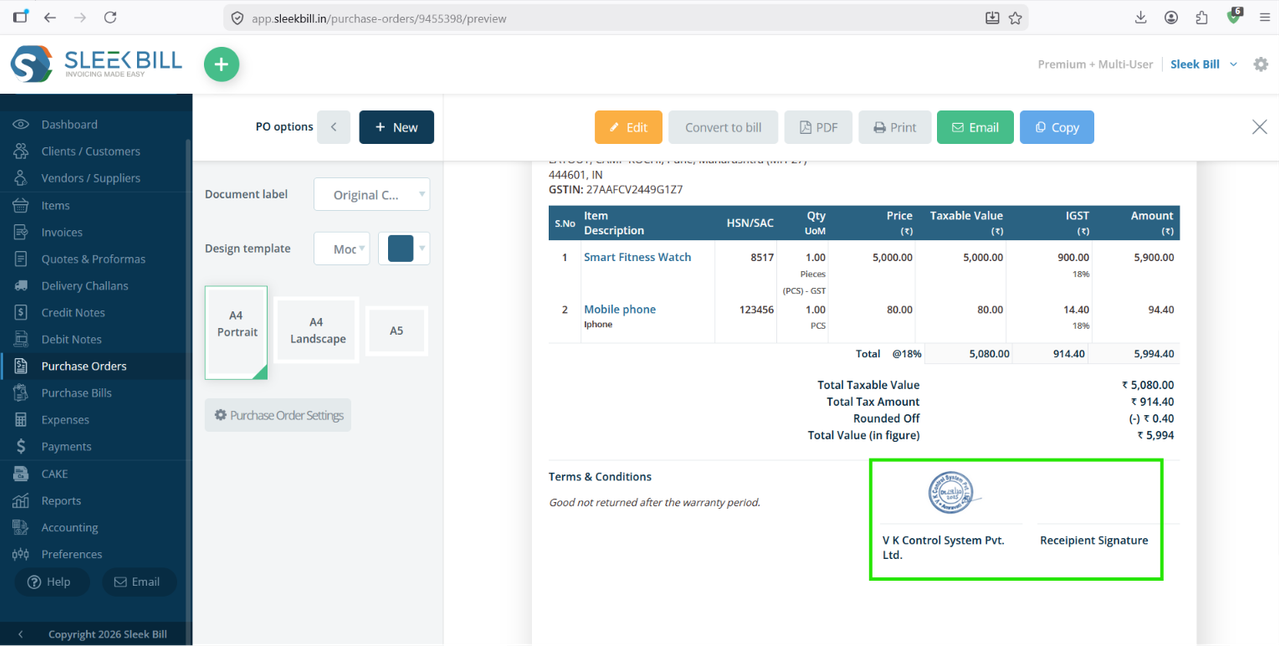
You will now see both Primary and Secondary Signatures displayed on the purchase order.
Conclusion
Sleek Bill makes it easy to customize purchase orders according to your business requirements. By enabling Primary and Secondary Signatures, you can create professional and authenticated purchase orders with proper authorization and approval.
Follow the above steps to quickly configure signatures in your purchase orders and streamline your procurement workflow.
Was this article helpful?